
How to Use OpenAI Codex with Chrome DevTools: A Complete Developer Guide for 2026
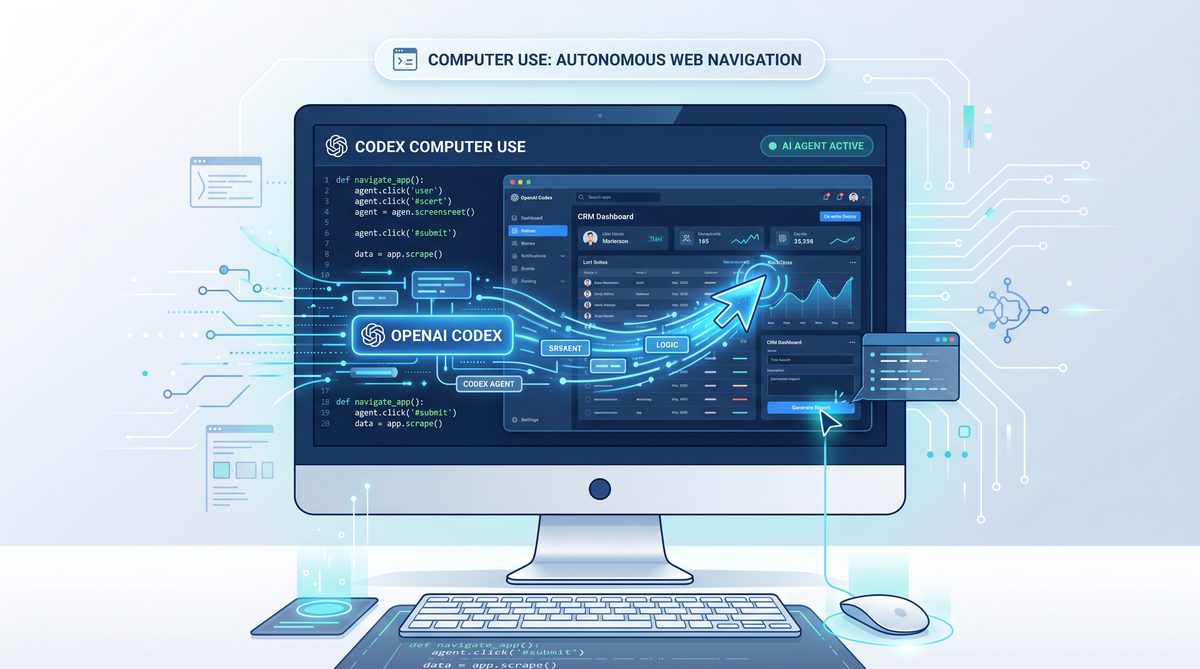
Introduction to OpenAI Codex’s New Features: Computer Use and Chrome Extension v1.1.4
In May 2026, OpenAI released critical enhancements to its Codex platform, focusing on two transformative features: the “Computer Use” capability and the upgraded Chrome extension, version 1.1.4. These advancements significantly expand Codex’s utility, enabling developers and users to harness AI-assisted programming and automation in more integrated and powerful ways.
This tutorial provides a comprehensive, step-by-step guide to effectively leveraging these new features. We will explore the operational mechanics inside Chrome, delve into the integration with Chrome Developer Tools (DevTools), discuss how Codex manages multiple parallel tabs, and explain the SSH connectivity capabilities. Whether you are a seasoned developer or an AI enthusiast, understanding these features will empower you to automate complex workflows, boost productivity, and create more sophisticated AI-driven applications.
Beyond these introductory remarks, this article will also cover practical examples, potential challenges, and best practices to maximize the impact of these new capabilities. By the end, you will be well-equipped to integrate Codex into your development lifecycle and system management tasks seamlessly.
Overview of OpenAI Codex’s Computer Use Feature
The “Computer Use” feature represents a paradigm shift in AI-assisted programming by allowing Codex to interact directly with the user’s computer environment. Traditionally, Codex served as a code generation and explanation tool; however, this new functionality extends its reach to performing tasks on the host machine, including file manipulation, executing commands, and interfacing with system resources.
At its core, the Computer Use feature acts as an AI agent with controlled access to the user’s operating system, governed by strict security protocols to prevent unauthorized operations. This capability enables Codex to automate complex sequences such as compiling code, running scripts, managing files, and even interacting with external systems through established protocols like SSH.
By bridging the gap between static code generation and dynamic system interaction, this feature enhances automation capabilities significantly. Developers can, for example, instruct Codex to fetch dependencies, adjust configuration files, or monitor system metrics without leaving their coding environment.
Key Functionalities and Use Cases
- File System Interaction: Codex can read, write, and modify files on the local machine, facilitating automated code editing, log analysis, and data processing workflows. This includes the ability to parse large datasets, refactor codebases, or generate reports based on file contents programmatically.
- Command Execution: Users can instruct Codex to run shell commands or scripts, enabling rapid prototyping, build automation, and environment configuration. For instance, Codex can compile source code, launch test suites, or perform system diagnostics on demand.
- Process Management: Codex can launch, monitor, and terminate processes, allowing it to manage development servers, testing environments, and debugging sessions. This is particularly useful for orchestrating microservices or managing containerized applications during the development cycle.
- Network Operations: The feature supports networking commands, including secure SSH connections, enabling remote system management and deployment tasks. This functionality opens opportunities for automated deployment pipelines, remote debugging, and real-time system monitoring.
These capabilities make Codex not only a coding assistant but also an intelligent operational tool that can streamline development and system administration tasks, reducing manual effort and minimizing human errors.
Security and Permissions Model
Given the sensitivity of granting an AI agent system-level access, OpenAI has implemented a robust permissions architecture for Computer Use. Users must explicitly approve operations, and the AI runs within a sandboxed environment that limits scope and potential risks.
The sandbox environment isolates Codex’s system interactions, preventing unauthorized access to critical files or processes. Additionally, a granular permission system allows users to define specific access levels, such as read-only file access or restricted command execution privileges.
Moreover, audit logs and activity monitoring are integral to the feature, allowing users to track all actions performed by Codex and revoke permissions if necessary. These logs include detailed timestamps, command execution outputs, and file changes, enabling comprehensive oversight.
This design ensures a balance between functionality and security, fostering trust in AI-powered automation. OpenAI also encourages users to adopt best practices such as running Codex sessions within dedicated virtual machines or containers for added isolation.
For a detailed discussion on security best practices when using AI tools with system access, refer to How to Use the OpenAI Codex Chrome Extension for Web Development in 2026.
Advanced Example: Automating a Full Build and Deployment Pipeline
Consider a scenario where a developer wants Codex to automate the entire build and deployment process for a web application. Using the Computer Use feature, Codex can:
- Clone the latest repository version via Git commands.
- Install dependencies using package managers like npm or pip.
- Run unit tests and integration tests automatically, capturing results.
- Build the production-ready application.
- Deploy artifacts to a staging server using secure SSH connections.
This end-to-end automation reduces manual intervention, accelerates delivery, and ensures consistency across environments.
Deep Dive into the Chrome Extension v1.1.4
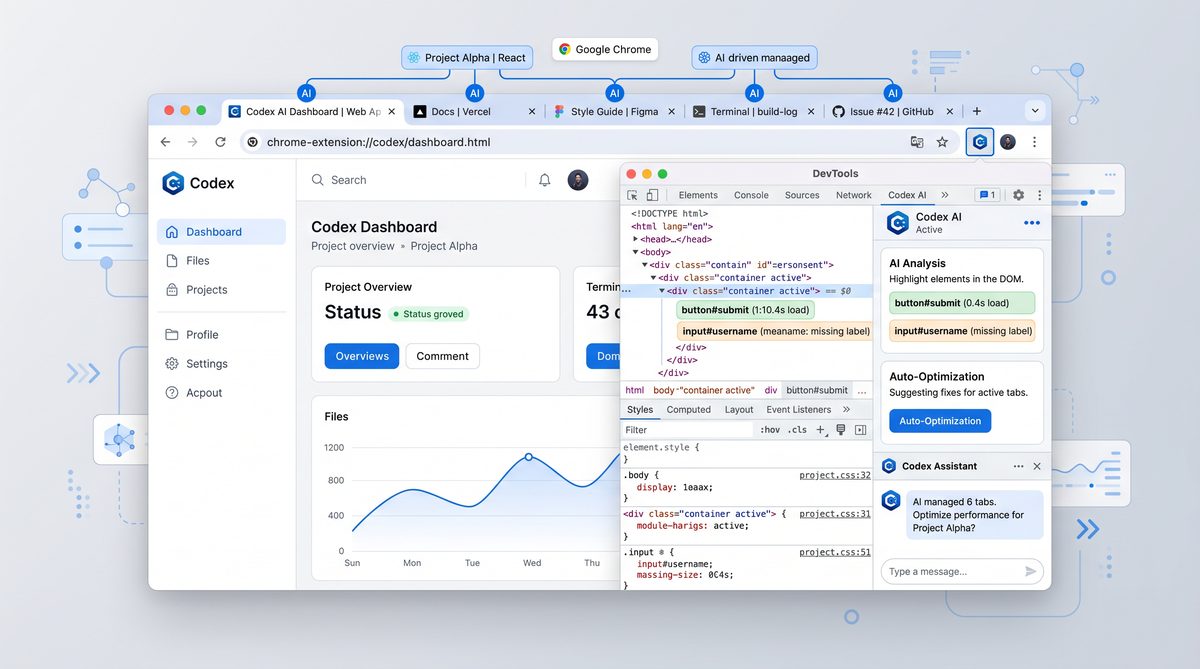
The updated OpenAI Codex Chrome extension, version 1.1.4, is engineered to provide seamless integration between Codex’s AI capabilities and the Chrome browser environment. This extension acts as a bridge, enabling Codex to operate directly within browser tabs, interact with web pages, and leverage Chrome’s Developer Tools for enhanced debugging and automation.
This version introduces a refined user interface, improved performance optimizations to reduce latency in AI responses, and expanded APIs for interacting with browser internals. These improvements make the extension more responsive and capable of handling complex automation workflows.
Installation and Setup
Installing the Chrome extension is straightforward via the Chrome Web Store. Version 1.1.4 introduces automatic updates, improved UI responsiveness, and expanded permission scopes required for advanced operations such as DevTools integration and SSH tunneling.
- Visit the Chrome Web Store and search for “OpenAI Codex.”
- Click “Add to Chrome” and confirm installation.
- Once installed, sign in using your OpenAI credentials to synchronize settings.
After installation, the extension icon appears on the toolbar, providing quick access to Codex’s interface and settings. Users can customize preferences, adjust AI response parameters, and manage workspace contexts directly from the extension dashboard.
Additionally, version 1.1.4 supports multi-account management, allowing developers to switch between different OpenAI accounts seamlessly, which is valuable for consultants or teams working across projects.
Operation Inside Chrome
Within Chrome, Codex operates as an embedded AI assistant that can analyze page content, execute JavaScript in the context of the current tab, and interact with browser APIs. This allows developers to:
- Generate and modify front-end code live on active web pages. For example, users can have Codex update CSS styles dynamically or inject new JavaScript functionality without refreshing the page.
- Automate repetitive UI testing and interaction sequences. Codex can simulate user clicks, form submissions, and navigation flows to validate application behavior.
- Inspect and manipulate page elements programmatically, providing fine-grained control over DOM elements to debug layout issues or enhance accessibility.
Additionally, the extension supports contextual prompts that adapt to the content of the active tab, enhancing relevance and precision in generated code and suggestions. For instance, when working on a React application, Codex can tailor its suggestions to React-specific coding patterns and best practices.
Version 1.1.4 also introduces a real-time collaborative mode, where multiple users can share Codex sessions within a browser tab, enabling pair programming and joint debugging efforts.
Integration with Chrome Developer Tools (DevTools)
One of the standout features introduced in version 1.1.4 is Codex’s deep integration with Chrome DevTools. The extension can now directly interface with DevTools panels, allowing AI-powered assistance for debugging, performance profiling, and network analysis.
Users can activate Codex within DevTools to receive:
- Real-time code suggestions: Inline hints and corrections for JavaScript, CSS, and HTML, including refactoring recommendations and code style enforcement.
- Automated debugging assistance: Suggestions on fixing errors, optimizing code, and improving load performance, such as identifying memory leaks or inefficient DOM updates.
- Network request analysis: AI-generated insights on API calls, latency issues, and security concerns, including recommendations for caching strategies and error handling improvements.
This integration significantly reduces context switching, enabling developers to maintain workflow continuity while harnessing AI assistance. Moreover, Codex can generate performance audit reports, suggest critical rendering path optimizations, and even automate the setup of Lighthouse audits based on detected page issues.
More advanced usage techniques for the Chrome extension with DevTools are available at How to Automate Workflows with the Codex Chrome Extension.
Case Study: Debugging a Complex Front-End Bug Using DevTools Integration
A developer working on a single-page application (SPA) encountered intermittent UI hangs and slow rendering. By activating Codex within DevTools, they received:
- Suggestions pinpointing excessive re-renders caused by improper state management.
- Code snippets to memoize components and optimize React hooks usage.
- Network analysis highlighting redundant API calls increasing latency.
Implementing Codex’s recommendations led to a 40% improvement in page responsiveness and smoother user interactions.
Managing Parallel Tabs and Sessions with Codex
Handling multiple browser tabs in parallel is a common challenge for developers working on complex web applications. The Codex Chrome extension v1.1.4 introduces sophisticated tab and session management capabilities that enhance multitasking and automation within Chrome.
These enhancements are particularly beneficial for developers conducting cross-page testing, performing A/B testing, or managing multi-step workflows involving several web applications simultaneously.
Parallel Tab Operation Architecture
The extension maintains isolated AI contexts for each open tab, enabling Codex to generate context-specific code and commands without interference. This architecture allows simultaneous operations in different tabs, such as:
- Running automated tests across multiple pages concurrently, ensuring comprehensive coverage and reducing overall testing time.
- Editing or injecting code snippets tailored to each tab’s content, supporting workflows like live patching or feature toggling.
- Monitoring network traffic or console logs independently for each session, allowing precise troubleshooting and performance analysis.
These isolated contexts are managed through a lightweight state synchronization mechanism that tracks changes and user inputs across tabs. This system ensures consistency while avoiding cross-contamination of data or commands between sessions.
Moreover, Codex intelligently prioritizes tab resources based on activity, optimizing performance and preventing unnecessary AI processing on inactive tabs.
Session Persistence and Synchronization
Codex also supports session persistence, allowing users to save the state of their AI interactions and reload them later. This is especially useful when working with long-running tasks or complex debugging sessions spanning multiple tabs.
The extension synchronizes session data with the user’s OpenAI account, enabling continuity across devices and browser instances. Users can export sessions for offline analysis or share them with team members for collaborative troubleshooting.
Advanced session management features include:
- Session Versioning: Track changes over time and revert to previous states if needed.
- Session Annotations: Add notes and tags to sessions for better organization and knowledge sharing.
- Session Merging: Combine related sessions to streamline multi-tab workflows.
This level of session management supports complex project workflows and team-based development environments.
Best Practices for Parallel Tab Usage
- Limit the number of active tabs to optimize performance and AI response times. Excessive tabs may reduce responsiveness due to resource constraints.
- Use descriptive tab titles and labels to assist Codex in contextual understanding. Clear naming conventions improve AI accuracy in generating relevant suggestions.
- Regularly save session states to prevent data loss during browser crashes or restarts. Enable automatic backups where possible.
- Organize tabs into workspaces or groups to compartmentalize tasks and reduce cognitive load.
For advanced workflows involving multiple tabs and sessions, see the detailed examples at OpenAI Launches $100 Pro Tier and Codex Chrome Extension.
SSH Connectivity with OpenAI Codex: Secure Remote Operations
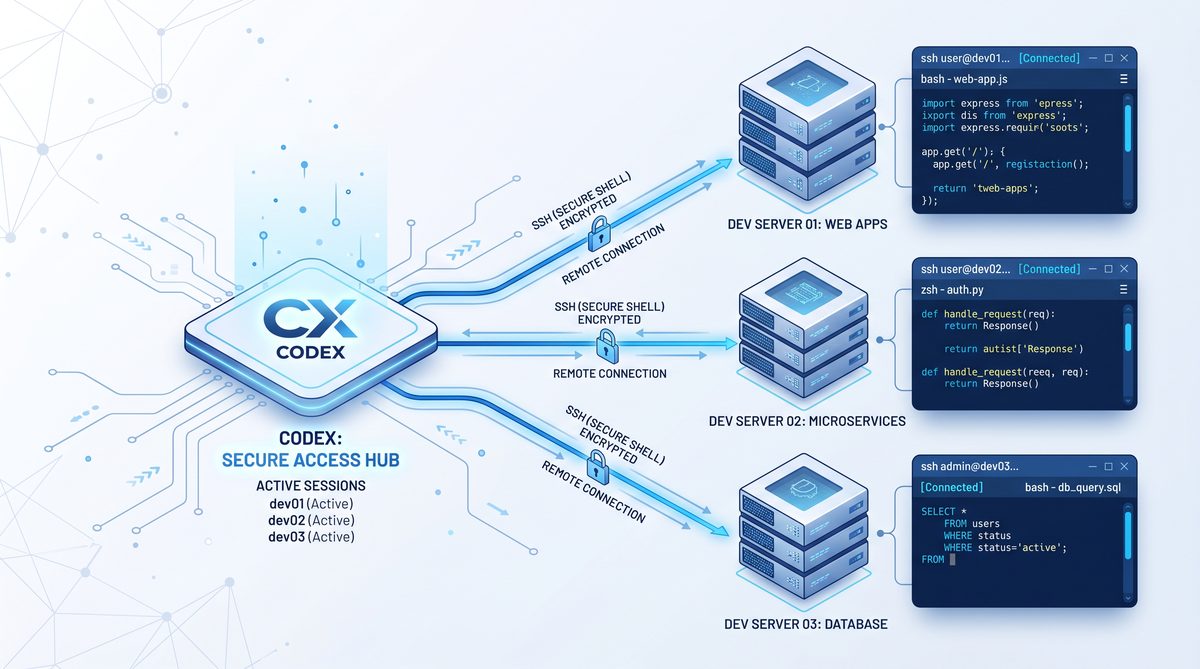
A notable enhancement of the Computer Use feature combined with the Chrome extension is Codex’s ability to establish secure SSH connections. This allows users to operate Codex as a remote command executor and automation agent on servers and other networked devices.
This integration bridges the local development environment with remote infrastructure management, enabling consolidated workflows and reducing context switching.
Establishing SSH Connections
The SSH functionality is integrated directly into the Codex interface within Chrome, enabling users to:
- Initiate encrypted terminal sessions without leaving the browser. This eliminates the need for separate SSH clients and streamlines remote access.
- Execute shell commands remotely with AI assistance for scripting and automation. Codex can generate complex shell scripts, parse command outputs, and suggest corrective actions.
- Transfer files securely between local and remote machines using SCP or SFTP protocols, enabling seamless deployment and data synchronization.
Connection setup involves standard SSH authentication mechanisms, including password and public/private key pairs. The extension provides a guided setup wizard to configure and test SSH credentials, ensuring secure access.
Users can also configure advanced SSH options such as port forwarding, agent forwarding, and jump hosts, enabling connectivity through complex network topologies.
Use Cases for SSH Integration
- Remote Development: Codex can edit and deploy code directly on remote servers, streamlining continuous integration and deployment pipelines. Developers can maintain a single interface for local and remote codebases.
- System Administration: Routine maintenance tasks, log analysis, and resource monitoring can be automated via AI-assisted scripting. Codex can generate scripts to check disk usage, restart services, or apply security patches.
- Collaborative Troubleshooting: Teams can share SSH session configurations securely, allowing Codex to assist in diagnosing and resolving issues remotely. This facilitates knowledge transfer and rapid incident response.
- Cloud Infrastructure Management: Automate provisioning, scaling, and configuration of cloud resources by integrating Codex with SSH-accessible cloud instances.
Security Considerations and Best Practices
Given the sensitive nature of SSH access, OpenAI has implemented stringent security measures:
- All SSH traffic is encrypted end-to-end using industry-standard cryptographic protocols.
- Codex only executes commands after explicit user confirmation to prevent unintended operations.
- Users can restrict Codex’s SSH capabilities to read-only or limited command scopes, minimizing risk exposure.
- Session activity is logged and auditable to detect anomalies or unauthorized use. Logs include command histories, session durations, and connection metadata.
- Multi-factor authentication (MFA) support is integrated to add another layer of protection during connection setup.
Users are encouraged to follow security best practices, such as using strong authentication keys, regularly rotating credentials, and limiting remote access permissions. Additionally, integrating Codex SSH sessions with existing enterprise security policies and monitoring solutions is recommended.
Example Workflow: Automating Remote Server Health Checks
Using Codex’s SSH integration, a system administrator can schedule automated health checks across multiple Linux servers. Codex can remotely execute scripts that:
- Check CPU and memory usage.
- Analyze disk space availability.
- Verify status of critical services.
- Aggregate logs and send alerts if thresholds are exceeded.
This automation reduces manual effort, improves system reliability, and enables proactive maintenance.
Conclusion
The May 2026 updates to OpenAI Codex, particularly the Computer Use feature and the Chrome extension v1.1.4, represent a significant leap forward in AI-assisted software development and system automation. By enabling direct interaction with computer resources, seamless integration within the Chrome ecosystem, robust parallel tab management, and secure SSH connectivity, these features empower users to streamline workflows, increase productivity, and leverage AI in novel and impactful ways.
Mastering these capabilities requires understanding their operational principles, security implications, and practical applications. This tutorial has provided an in-depth walkthrough to help you get started and maximize the value of these tools.
Looking ahead, continued enhancements to Codex’s integration capabilities and security models are expected, further solidifying its role as an indispensable assistant in modern development and operations workflows.
For further reading and advanced tutorials on OpenAI Codex, its integration with other platforms, and automation best practices, explore our additional resources at .
Access 40,000+ AI Prompts for ChatGPT, Claude & Codex — Free!
Subscribe to get instant access to our complete Notion Prompt Library — the largest curated collection of prompts for ChatGPT, Claude, OpenAI Codex, and other leading AI models. Optimized for real-world workflows across coding, research, content creation, and business.