
ChatGPT Computer History Privacy Risks: How Infostealers Could Map Your Entire Mac Activity Through OpenAI’s New Feature
ChatGPT Computer History Privacy Risks: How Infostealers Could Map Your Entire Mac Activity Through OpenAI’s New Feature
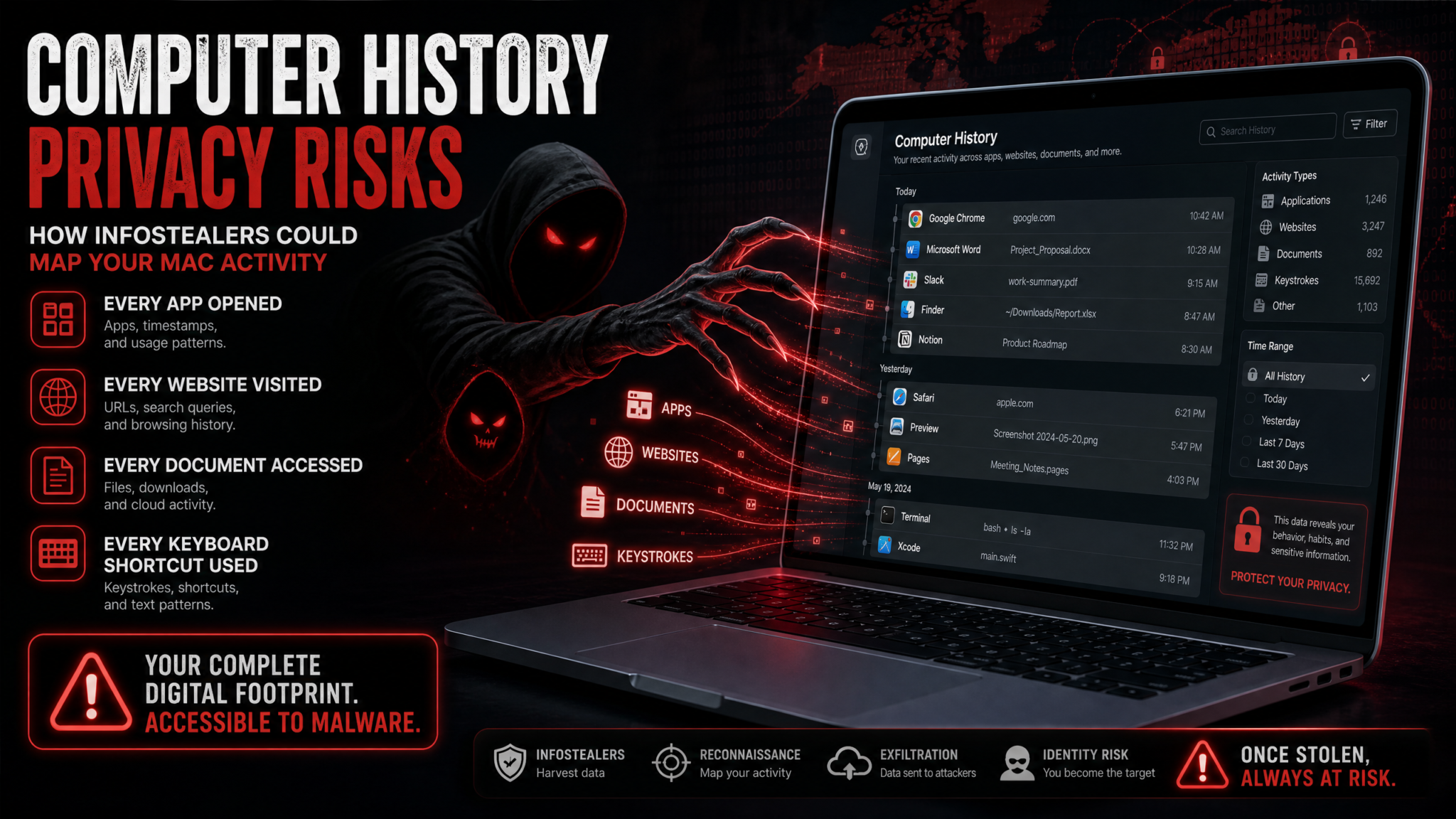
OpenAI’s Computer History feature for the ChatGPT desktop app represents one of the most ambitious attempts yet to make an AI assistant genuinely useful in everyday computing — but it also introduces a privacy attack surface that security researchers are calling unprecedented in scope. Unlike traditional cloud-based data collection, Computer History creates a richly detailed, searchable timeline of everything you do on your Mac: every click, every keystroke, every app you open, every document you touch. It lives on your device. It’s opt-in. And according to a critical report published by HelpNetSecurity on August 19, 2026, it could become the single most valuable target an infostealer has ever encountered on a personal computer.
What Is ChatGPT Computer History and What Does It Actually Do?
ChatGPT Computer History is an opt-in feature embedded in the ChatGPT desktop application for macOS. When enabled, it continuously observes your computing activity and builds a structured, searchable timeline of everything that happens on your machine. The goal, from OpenAI’s perspective, is to transform ChatGPT from a conversational chatbot into a genuine personal assistant that understands the context of your work — one that knows what you were doing at 2 PM yesterday, which documents you had open when you drafted that proposal, and which websites you visited while researching a topic.
The feature is explicitly modeled on the kind of contextual memory that makes human assistants effective. When you ask a knowledgeable colleague to help you find a document, they might say, “I think you had that open in Pages last Tuesday while you were working on the Henderson account.” Computer History gives ChatGPT the same capability — but instead of human memory, it uses a continuously updated local database of your activity.
Core Capabilities of Computer History
When fully enabled, Computer History tracks and indexes the following categories of activity:
- Application switches: Every time you switch from one application to another, the timestamp and both application names are recorded. This creates a minute-by-minute workflow map.
- Active window titles: The title of whichever window is in focus is captured at regular intervals, revealing which document, webpage, or project you’re working on.
- Keyboard shortcut patterns: Frequent shortcuts — Command+S to save, Command+C to copy, Command+Tab to switch apps — are logged as behavioral fingerprints that reveal working habits and tool proficiency.
- Click activity and navigation: Mouse click locations and patterns within applications are monitored to understand navigation behavior.
- Typing context: While Computer History is not a keylogger in the traditional sense, it captures contextual text — what you’re typing in which application — to provide relevant AI assistance.
- File access patterns: When you open, save, or close files, the filenames, paths, and timestamps are recorded.
- Web browsing through apps: Browser window titles and URL bar content visible in the active window are indexed as part of your activity timeline.
The resulting dataset is extraordinarily rich. After just one week of normal computer use, Computer History will have constructed a detailed behavioral profile: when you start work, what you work on first, which tools you rely on, which websites you visit regularly, which files you access most, and how your workflow changes throughout the day.
The Contextual Assistance Value Proposition
Understanding why users would enable such an invasive feature requires understanding its genuine utility. Imagine asking ChatGPT, “What was that article I was reading about supply chain vulnerabilities last Thursday?” Without Computer History, ChatGPT has no idea. With it, ChatGPT can search your activity timeline, find that you had Safari open to a specific URL at 3:47 PM on Thursday, and surface the exact article. This kind of recall is genuinely useful for knowledge workers, researchers, writers, and developers who juggle dozens of information streams daily.
ChatGPT Desktop App Features and Productivity Use Cases
For developers, Computer History can remember which documentation pages you were reading when you wrote a specific function, enabling ChatGPT to provide more relevant debugging help. For writers, it can recall which reference materials you consulted while drafting a section. For project managers, it can reconstruct the timeline of decisions made across multiple tools. The utility is real — and that’s precisely what makes the privacy implications worth examining with serious rigor.
How Computer History Works Technically: Permissions, Capture, and Storage
To understand the security risks associated with Computer History, it’s essential to understand its technical architecture at a deeper level. The feature doesn’t operate through some proprietary OpenAI mechanism — it uses the same macOS accessibility and screen recording APIs available to any macOS developer. This is both reassuring (it means it works within Apple’s permission framework) and concerning (it means the data it generates can potentially be accessed by any process that gets the right access).
macOS Accessibility Permissions: The Foundation
Computer History requires two critical macOS permission grants that users must explicitly approve:
- Accessibility access: Granted through System Settings → Privacy & Security → Accessibility. This permission allows ChatGPT to observe UI elements, keyboard events, and application states system-wide. It’s the same permission that screen readers, automation tools, and accessibility software use — and it’s among the most powerful permissions any app can hold on a Mac.
- Screen recording permission: Granted through System Settings → Privacy & Security → Screen Recording. This allows ChatGPT to capture visual content from the screen, enabling it to read window titles, see what’s displayed, and index visual context alongside activity metadata.
Both of these permissions are sandboxed in the sense that the user must explicitly grant them, and macOS displays indicators (like the orange dot for microphone access) when certain permissions are active. However, once granted, these permissions give an application exceptionally broad observational capability across the entire system — not just within its own sandbox.
The Data Capture Pipeline
Computer History’s capture pipeline operates through a background process that runs continuously when the feature is enabled. At a technical level, this process:
- Hooks into the macOS Accessibility API using
AXObservercallbacks to receive notifications of UI element changes, focus shifts, and keyboard events - Uses
CGWindowListCopyWindowInfoto enumerate visible windows and capture their metadata including titles, bounds, and application identifiers - Periodically captures screen snapshots using
CGDisplayCreateImageor equivalent APIs for visual context indexing - Runs optical character recognition (OCR) on captured frames to extract text content visible on screen
- Passes extracted text through a local embedding model to create searchable vector representations of your activity
The processed output — structured activity records with timestamps, application identifiers, window titles, extracted text, and vector embeddings — is written to a local database. OpenAI has stated this database uses SQLite-based storage with application-level encryption, stored in the ChatGPT app’s designated container directory at a path similar to ~/Library/Application Support/com.openai.ChatGPT/ComputerHistory/.
Local Storage Architecture and the Encryption Question
OpenAI’s documentation states that Computer History data is stored locally and never transmitted to OpenAI’s servers unless you explicitly share a memory or activity with ChatGPT during a conversation. This local-first approach is similar to Apple’s on-device intelligence philosophy and represents a genuine privacy-protective design choice.
However, “local storage with application-level encryption” is a significantly weaker protection model than most users assume. Application-level encryption typically means the encryption key is derived from or stored near the encrypted data — it prevents casual file system browsing of the database contents but does not prevent access by processes that run in the same user account context or by malware that achieves code execution with user-level privileges. If a malicious process can read the ChatGPT application’s container directory, and if it can derive or locate the encryption key (which is almost certainly derived from the macOS Keychain entry for the application), it can decrypt and read the entire Computer History database.
The HelpNetSecurity Report: What Security Researchers Found
On August 19, 2026, HelpNetSecurity published an investigative report that crystallized what many security professionals had been theorizing since Computer History’s announcement: the feature could become the primary target for a new generation of infostealers specifically designed to harvest AI activity data from macOS machines.
The report drew on analysis from multiple security research teams who had been examining the Computer History architecture since its preview release. Their central finding was stark: Computer History creates a single unified file that contains more personally identifiable and behaviorally sensitive information than any other data store on a typical user’s Mac — including browser history, which is distributed across multiple browser profiles and databases, and email archives, which are typically protected by separate application containers.
Why This Data Store Is Uniquely Valuable to Attackers
The HelpNetSecurity analysis identified several characteristics that make the Computer History database an especially high-value target:
- Unified cross-application timeline: Traditional infostealers must harvest data from dozens of separate sources — browser cookies from Chrome’s profile directory, keychain credentials from macOS Keychain, browser history from Firefox’s SQLite database, email headers from Mail.app’s envelope index. Computer History consolidates this information into a single, already-indexed, already-searchable database.
- Behavioral intelligence, not just credentials: Credential-focused infostealers steal passwords. Computer History yields something more dangerous: a complete behavioral map that reveals when the user is online, what security tools they use, how they interact with authentication systems, and what their daily routines look like — intelligence that dramatically increases the sophistication of follow-on attacks.
- Password manager interaction records: Because Computer History tracks application switches and window focus, it records every interaction with password manager applications including 1Password, Bitwarden, Dashlane, and others. While it doesn’t directly capture master passwords or vault contents, it records when the vault was opened, how long it was open, and which accounts were accessed — creating a map of credential usage patterns.
- Document access history: For corporate espionage scenarios, Computer History reveals every internal document a user has accessed, including file paths that expose directory structures, project names, and organizational hierarchies that would normally require deep network access to discover.
The Infostealer Threat Landscape Context
The HelpNetSecurity report situates the Computer History risk within the broader infostealer epidemic affecting macOS. Contrary to popular belief that Macs are immune to malware, the macOS infostealer market has exploded since 2024. Families including Atomic macOS Stealer (AMOS), Poseidon Stealer, and Cthulhu Stealer have demonstrated that macOS users are not meaningfully more protected against credential theft and data exfiltration than Windows users — they are simply targeted less frequently, a gap that has been closing rapidly as the macOS user base among high-value corporate and technical employees has grown.
The research team noted that existing macOS infostealers already target SQLite databases associated with browsers, crypto wallets, and application state files. Adding the ChatGPT Computer History database to their target list would be a trivial extension requiring minimal additional development. In their proof-of-concept analysis (conducted in an isolated research environment), researchers demonstrated that a process running with standard user privileges could locate, read, and exfiltrate the Computer History database in under 30 seconds on a typical MacBook Pro — far faster than most endpoint detection systems would flag unusual file access patterns.
Specific Attack Vectors: How Infostealers Could Exploit Computer History
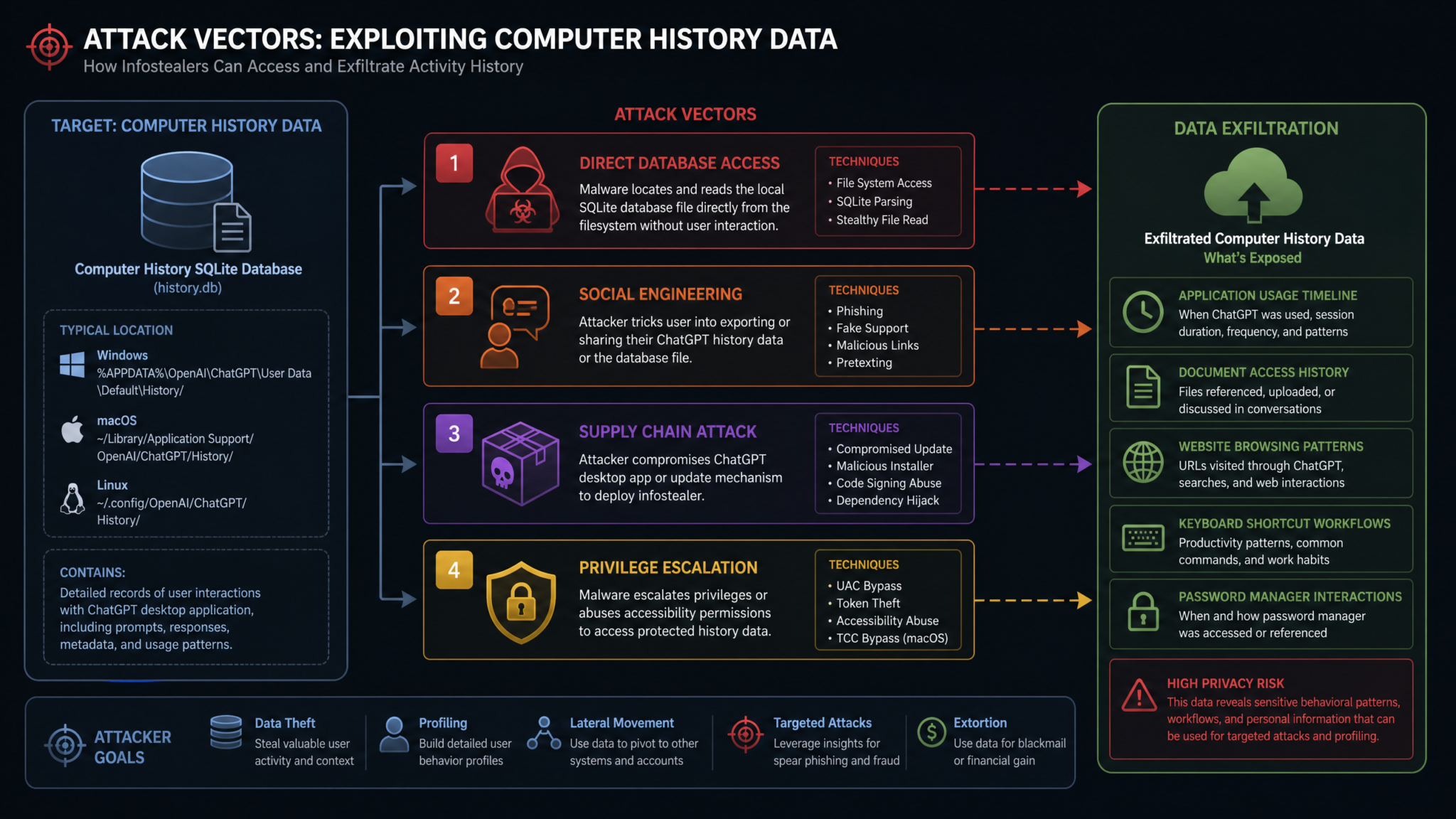
Understanding the theoretical risk is important, but security professionals and end users benefit more from understanding the specific attack paths that malicious actors could take. There are four primary vectors through which Computer History data could be compromised.
Attack Vector 1: Malware Targeting the Computer History Database Directly
The most straightforward attack is malware that, once executing on the victim’s machine, simply locates and exfiltrates the Computer History database file. Because this database lives in a predictable path within the ChatGPT application’s container directory, any malware with file system access can target it specifically.
The attack would typically proceed as follows:
- Initial access gained through phishing, malicious download, or trojanized application
- Malware establishes persistence using a LaunchAgent or LaunchDaemon plist in
~/Library/LaunchAgents/ - Database files located at the known ChatGPT container path
- Application encryption key retrieved from the macOS Keychain using the application’s bundle identifier as a lookup key (this may require a separate privilege escalation step or social engineering the user to run a malicious shortcut)
- Decrypted database compressed and exfiltrated to attacker-controlled infrastructure over HTTPS to blend with normal traffic
What the attacker receives is a complete historical record that, depending on how long Computer History has been enabled, could span weeks or months of activity. This single file could replace months of traditional surveillance activity.
Attack Vector 2: Social Engineering to Enable the Feature
A more sophisticated but potentially more scalable attack vector doesn’t require compromising an already-enabled Computer History instance — instead, attackers socially engineer victims into enabling the feature and then target the resulting data. This approach is particularly effective because Computer History is an opt-in feature, meaning many high-value targets (corporate executives, security professionals, developers) may have specifically avoided enabling it. Attackers could use several social engineering approaches:
- Fake IT support scripts: Impersonating corporate IT support and instructing employees to enable Computer History as part of a supposed “AI productivity initiative”
- Trojanized setup guides: Publishing convincing how-to articles that walk users through enabling Computer History while also enabling attacker-controlled monitoring
- Malicious ChatGPT plugins or extensions: Creating companion tools that appear to enhance Computer History functionality but actually exfiltrate the data they claim to help organize
Attack Vector 3: Supply Chain Attacks on the ChatGPT Desktop Application
Supply chain attacks represent the most sophisticated and highest-impact vector. Rather than targeting individual users’ machines, a supply chain attack compromises the ChatGPT desktop application itself — either through the build pipeline, the distribution mechanism, or the update infrastructure. A compromised application version could silently exfiltrate Computer History data to attacker-controlled servers while appearing to function normally. Users would have no way to detect this activity without inspecting the application’s network traffic, which most users never do.
The risk is heightened by the fact that ChatGPT already holds the accessibility and screen recording permissions that Computer History requires. A compromised build wouldn’t need to request any new permissions — it would simply redirect already-collected data to an additional destination.
Attack Vector 4: Data Exfiltration Through the Local History File via Shared Processes
On macOS, user-space processes run in a shared environment where they can interact with each other through various inter-process communication mechanisms. A malicious process that achieves user-level execution (the same privilege level as ChatGPT) can potentially access the application container directories of other applications if those containers are not strictly sandboxed. The question of whether the ChatGPT desktop app’s container is fully sandboxed has direct bearing on this attack vector’s viability.
Applications distributed through the Mac App Store are required to use App Sandbox, which enforces strict container isolation. However, applications distributed directly (outside the App Store) are not required to implement App Sandbox, and the ChatGPT desktop app is distributed through OpenAI’s website rather than the Mac App Store. This means the Computer History database directory may be accessible to any process running as the same user — a significant architectural concern that the security research community has flagged explicitly.
macOS Application Sandboxing and AI Tool Security Considerations
What Data Is Actually at Risk: A Granular Breakdown
To properly assess the Computer History risk, it’s necessary to be specific about what the database actually contains. Generic references to “your activity” undersell the specificity and sensitivity of the data that could be compromised.
Complete Activity Timeline
The activity timeline is the foundational data structure: a timestamped sequence of every application switch, window focus change, and significant user interaction. For a knowledge worker who uses their Mac eight hours per day, this timeline after 30 days contains approximately 50,000 to 200,000 timestamped events. Each event includes at minimum: timestamp (millisecond precision), application bundle identifier, window title, and event type.
From this raw timeline, it’s straightforward to derive: your work schedule, your meeting schedule (inferred from calendar and video conferencing app usage patterns), your communication habits (who you message and when, inferred from messaging app usage), and your productivity patterns (when you’re focused versus distracted, based on application switching frequency).
Application Usage Patterns as Behavioral Fingerprints
Application usage patterns constitute a behavioral fingerprint unique enough to identify individuals across different devices. Research in user identification has demonstrated that application usage patterns alone — which apps are used, in what sequence, for how long, at what times — can identify individuals with over 95% accuracy. For an attacker performing targeted attacks, this fingerprint confirms they have the right target’s data and provides intelligence about what tools to spoof or compromise in follow-on attacks.
Document Access History and Corporate Intelligence
Every file you open, save, or close is logged with its full path. For a corporate employee, this exposes the naming conventions, directory structure, and project organization of potentially confidential company resources. File paths routinely contain project codenames, client names, product names, and internal organizational identifiers that would be extremely valuable to corporate espionage actors.
Consider a path like: /Users/jsmith/Documents/Projects/Acme_Corp_Acquisition_2026/Due_Diligence/Financial_Models/Q3_Projections_DRAFT.xlsx. This single file path reveals that the user’s company is conducting an acquisition of Acme Corp, that due diligence is in progress, and that financial modeling is underway — information that would constitute material non-public information in a securities context.
Website Browsing Through Application Window Titles
Because Computer History captures window titles, and because browser window titles typically include the page title and/or URL, your entire browsing history is effectively captured as part of the activity timeline — not just websites you visit through the browser, but content you access through embedded web views in native applications, which are typically excluded from browser history entirely.
Keyboard Shortcut Patterns That Reveal Sensitive Workflows
Keyboard shortcuts seem innocuous but reveal more than expected. Frequent use of Command+K in Slack reveals that you’re creating links — possibly sharing sensitive URLs. Regular use of application-specific shortcuts reveals what professional tools you use and at what level of proficiency. Patterns in copy-paste operations (Command+C followed quickly by Command+V in a different application) reveal data transfer workflows that could indicate how sensitive information moves between systems.
Most critically, interactions with password managers create distinctive shortcut patterns. Unlocking 1Password, autofilling credentials, and then immediately switching to a banking or administrative application creates a recognizable sequence that tells an attacker: this user just authenticated to a sensitive system, and here’s approximately when they do it and which accounts they access most frequently.
OpenAI’s Privacy Controls: What Protection Exists
It would be unfair to analyze the risks of Computer History without equally rigorously examining the privacy protections OpenAI has built into the feature. These controls are meaningful and represent a significantly more privacy-protective design than alternatives like Microsoft Recall, which was OpenAI’s most direct inspiration and controversy-predecessor.
Opt-In Architecture
Computer History is strictly opt-in. The feature is not enabled by default when you install the ChatGPT desktop app, and enabling it requires multiple explicit user actions: navigating to settings, enabling the feature, and granting the required macOS permissions (which generate their own system-level permission dialogs). This multi-step enablement process means users who are unaware of or uninterested in the feature are not affected by its privacy risks at all.
Local-Only Data Storage
OpenAI’s stated architecture keeps all Computer History data on-device. This is the most significant privacy protection in the design: data that never leaves your device can’t be intercepted in transit, breached from OpenAI’s servers, or exposed through API vulnerabilities. OpenAI’s privacy policy for Computer History explicitly states that activity data is not transmitted to OpenAI servers and is not used to train AI models unless explicitly shared by the user.
Pause and Delete Controls
Users can pause Computer History collection at any time without disabling the feature entirely — useful for temporary periods of sensitive work. Users can also delete specific time ranges from their history (for example, deleting the last hour, last day, or a custom date range) or delete the entire Computer History database. OpenAI provides these controls directly in the ChatGPT desktop app settings panel, accessible without requiring account authentication beyond the already-authenticated session.
Application Exclusion Lists
Computer History allows users to exclude specific applications from monitoring. Users can add applications like their password manager, banking apps, or any application handling sensitive data to an exclusion list, preventing Computer History from recording activity in those applications. This is a meaningful control, but its value depends entirely on users knowing which applications handle sensitive data — a judgment call that most users are not well-equipped to make comprehensively.
OpenAI Privacy Settings and Data Control Features in ChatGPT
Comparing Computer History to Existing Privacy Risks
Computer History doesn’t exist in a vacuum — macOS users already face numerous data collection mechanisms that create similar (though generally less comprehensive) activity profiles. Putting Computer History in comparative context helps calibrate the actual incremental risk it introduces.
| Data Collection Mechanism | Scope of Data | Storage Location | Attacker Accessibility | User Control Level | Cross-Application Integration |
|---|---|---|---|---|---|
| ChatGPT Computer History | Complete cross-application activity timeline with text extraction | Local device (app container) | High (user-space accessible, possible no sandbox) | High (opt-in, pause, delete, app exclusions) | Complete — by design |
| Browser History (Chrome/Safari/Firefox) | URL, page titles, visit timestamps | Local device (browser profile) | High (SQLite DB at predictable path) | Medium (clear on quit, incognito mode) | Web only |
| macOS Screen Time | App usage duration and category statistics | Local device and iCloud | Medium (encrypted, Apple ID protected) | Medium (Apple ID required to view/delete) | App usage only, no content |
| Traditional Keyloggers | All keystrokes including passwords | Local device or C2 server | High (by malicious design) | None (installed without consent) | Keystroke only, no visual context |
| Third-Party Activity Trackers (RescueTime, etc.) | App usage duration, web categories | Cloud servers (vendor) | Medium (requires vendor breach) | Medium (account deletion) | App usage only, no content |
| Microsoft Recall (Windows) | Full screenshots with OCR, semantic search | Local device (originally plain text DB) | Very High (initial release had no encryption) | Medium (opt-in after initial controversy) | Complete — by design |
| macOS Spotlight/Metadata | File access timestamps and metadata | Local device | Low (system-level, harder to access) | Low (limited user control) | Files only, no application activity |
This comparison reveals that Computer History introduces a qualitatively different type of risk compared to existing mechanisms. While browser history is more directly attacker-accessible (the SQLite database is well-documented and frequently targeted), Computer History is vastly more comprehensive in scope. The combination of breadth (cross-application), depth (text extraction via OCR), and structure (already indexed for search) makes it uniquely dangerous if compromised — even if the underlying storage technology is no more accessible than a browser’s history database.
Risk Assessment Matrix: Evaluating Your Personal Threat Level
Not all users face equal risk from Computer History. The actual threat level depends on a combination of the data you handle, your computing environment, your threat model, and the sophistication of adversaries who might be interested in your activity. The following risk matrix provides a structured framework for self-assessment.
Access 40,000+ AI Prompts for ChatGPT, Claude & Codex — Free!
Subscribe to get instant access to our complete Notion Prompt Library — the largest curated collection of prompts for ChatGPT, Claude, OpenAI Codex, and other leading AI models. Optimized for real-world workflows across coding, research, content creation, and business.
| User Profile | Data Sensitivity | Threat Actor Likelihood | Existing Security Controls | Overall Risk Level | Recommendation |
|---|---|---|---|---|---|
| Personal/consumer use, non-sensitive work | Low | Low (opportunistic malware only) | Standard AV, FileVault | LOW | Feature usable with standard precautions |
| Remote worker, employer-managed apps | Medium | Medium (corporate espionage possible) | MDM, endpoint protection | MEDIUM | Enable application exclusions; consult IT policy |
| Financial services professional | High (regulated data) | High (targeted attacks common) | Often strong but variable | HIGH | Avoid enabling; regulatory compliance risk |
| Healthcare provider with patient data | Very High (PHI/HIPAA) | High (healthcare is top-targeted sector) | Compliance-driven controls | VERY HIGH | Do not enable; potential HIPAA violation |
| Software developer (personal projects) | Medium (code, credentials) | Medium (developer credentials are valuable) | Variable | MEDIUM | Exclude IDE and terminal; enable carefully |
| Software developer (enterprise) | High (proprietary code, infra access) | High (software supply chain target) | Usually strong | HIGH | Avoid enabling without explicit security team approval |
| Journalist or activist | Very High (source identities) | Very High (nation-state interest possible) | Variable, often insufficient | CRITICAL | Do not enable under any circumstances |
| Executive with M&A or board information | Very High (material non-public information) | High (corporate espionage, insider threat) | Often insufficient for this threat level | CRITICAL | Do not enable; securities law risk potential |
| Security researcher or penetration tester | High (client data, findings) | High (targets of opportunity attacks) | Usually sophisticated | HIGH | Work machine separation; avoid if using single device |
| Student or academic researcher | Low-Medium (research, unpublished work) | Low-Medium | Standard institutional controls | LOW-MEDIUM | Usable with research-specific exclusions configured |
The matrix makes clear that Computer History risk is fundamentally a function of what data you handle and who might want it. For most personal users, the feature’s risks are manageable with basic precautions. For anyone handling regulated, confidential, or strategically valuable information, the risk profile argues strongly against enabling the feature at all.
Who Should and Shouldn’t Use This Feature
Use Cases Where Computer History Provides Genuine Value
Computer History is not a universally dangerous feature — for many users, the utility substantially outweighs the risk, particularly when appropriate security hygiene is maintained. The following profiles represent users for whom enabling Computer History is defensible:
- Freelance creative professionals who work across many projects on a single machine and need to quickly reconstruct their research process, asset usage, and creative workflow for client communication or project documentation
- Academic researchers who consume large volumes of material across many sources and need AI assistance connecting disparate sources they’ve accessed at different times
- Personal productivity users whose work doesn’t involve regulated data, sensitive corporate information, or third-party confidentiality obligations and who would genuinely benefit from AI-assisted recall
- Content creators who want AI assistance with workflow optimization and content planning that benefits from understanding their research and creation patterns
- Individual developers working exclusively on personal or open-source projects with no enterprise credentials or proprietary code on their machines
Use Cases Where the Risk Clearly Outweighs the Benefit
The following user types should avoid Computer History regardless of how compelling the productivity benefits may seem:
- Enterprise employees in any organization with a data classification policy — almost certainly their employer’s policies prohibit enabling system-wide activity tracking by a third-party application
- Legal professionals handling client matters — attorney-client privilege considerations likely extend to prohibiting this type of activity tracking
- Healthcare workers — HIPAA’s minimum necessary standard and business associate requirements make Computer History’s data collection almost certainly non-compliant on devices used for patient care
- Financial advisors and investment professionals — FINRA and SEC record-keeping requirements intersect poorly with AI activity tracking, and the fiduciary data exposure risk is substantial
- Government employees or contractors — federal data handling requirements almost universally prohibit this type of third-party application permission on work devices
- Anyone who shares their Mac with other users — Computer History would capture the activity of all users who log into the same account, creating consent and privacy issues for the other users
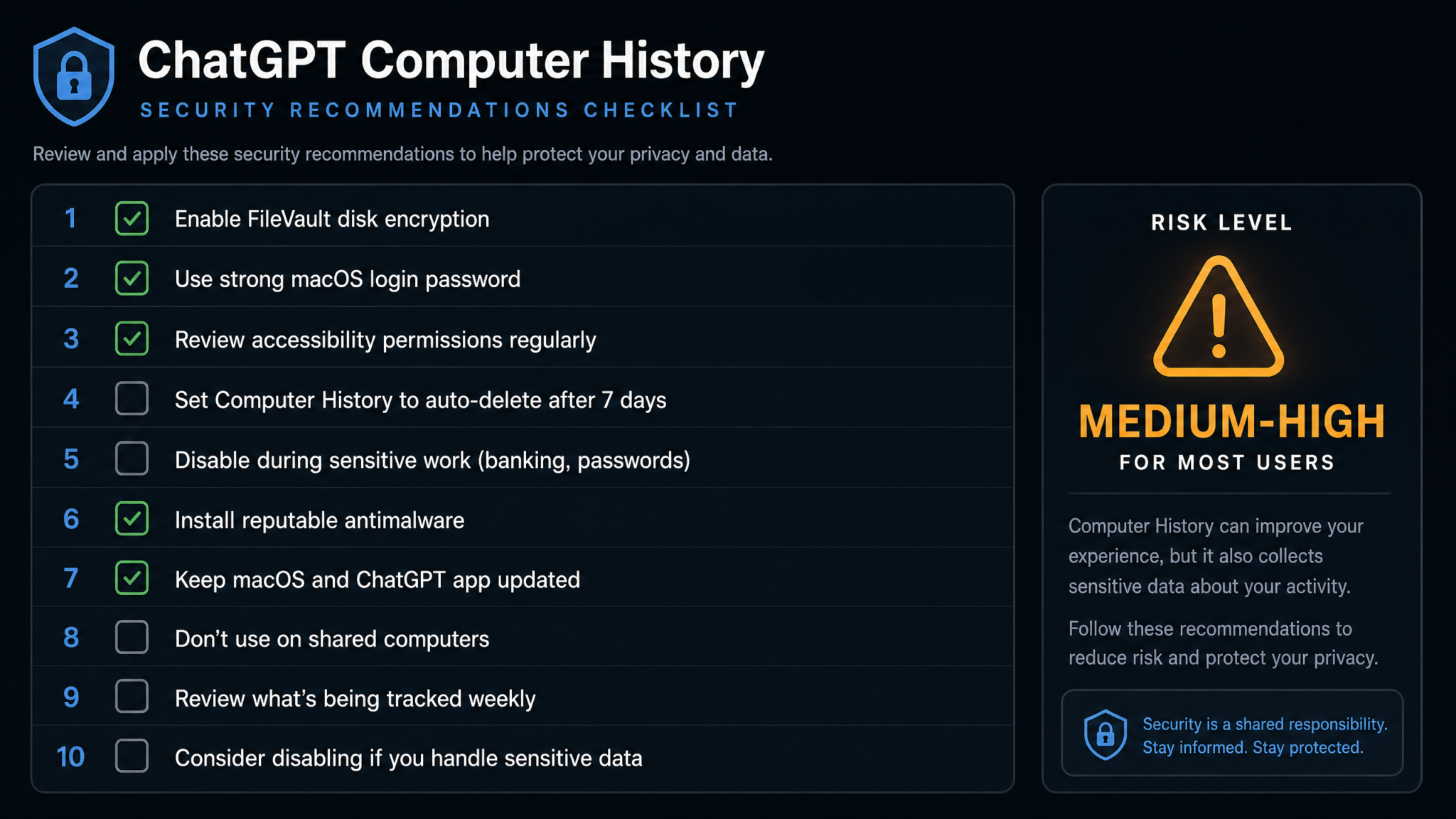
10 Specific Security Recommendations for Safer Computer History Use
For users who determine that Computer History’s benefits are worth the risks given their personal threat model, the following ten specific security measures significantly reduce the attack surface.
1. Verify the ChatGPT Application’s Code Signature Before Enabling
Before enabling Computer History, verify that your installed ChatGPT application is legitimately signed by OpenAI. Open Terminal and run:
codesign --verify --deep --strict /Applications/ChatGPT.app
spctl --assess --verbose /Applications/ChatGPT.app
The output should confirm the application is signed and notarized. If either command returns errors, do not enable Computer History and reinstall the application from openai.com directly.
2. Enable FileVault Full-Disk Encryption
FileVault encrypts the entire disk with your login password, ensuring that if your Mac is physically stolen, the Computer History database (and all other data) is inaccessible without your credentials. Navigate to System Settings → Privacy & Security → FileVault and enable it if not already active. This is a baseline control that every Mac user should have enabled regardless of Computer History.
3. Configure Application Exclusions Comprehensively
In ChatGPT’s Computer History settings, add the following application categories to the exclusion list at minimum:
- All password managers (1Password, Bitwarden, Dashlane, Keychain Access)
- All banking and financial applications
- Your primary email client
- VPN clients and network diagnostic tools
- Any application used for two-factor authentication
- SSH clients and terminal emulators if they contain server credentials
- Any application used for work with confidential client information
4. Implement Firewall Rules to Monitor ChatGPT Network Traffic
Use Little Snitch or another macOS application firewall to monitor and control ChatGPT’s network connections. Create a rule set that allows ChatGPT to connect only to documented OpenAI domains (api.openai.com, chatgpt.com, and related subdomains) and alerts you to any connection attempts to other destinations. Any connection to non-OpenAI infrastructure from the ChatGPT process should be treated as a potential compromise indicator.
5. Set a Regular History Deletion Schedule
Don’t allow Computer History to accumulate indefinitely. Set a recurring calendar reminder — weekly or biweekly — to delete older history segments. The more history exists in the database, the more valuable the database becomes to an attacker. Maintaining a shorter rolling window significantly limits the damage from any potential compromise.
6. Pause Computer History During Sensitive Work Periods
Use the pause function whenever you’re engaging in activity you wouldn’t want captured: accessing financial accounts, reviewing sensitive documents, conducting confidential communications, or working with any regulated data. Build the habit of pausing before sensitive sessions and resuming afterward.
7. Keep macOS and ChatGPT Updated Immediately
Supply chain attack surface is smallest when both the operating system and the application are at their latest versions. Enable automatic updates for macOS security patches, and check for ChatGPT application updates manually if automatic updates are not available. Do not delay security updates, particularly given that Computer History gives the ChatGPT process system-wide observational capability that makes vulnerabilities in the application particularly high-impact.
8. Audit Accessibility and Screen Recording Permission Grants Regularly
Open System Settings → Privacy & Security → Accessibility and Screen Recording and review every application that has been granted these permissions. Remove access for any application you don’t actively use or don’t recognize. These permissions are among the most powerful on macOS, and minimizing the number of applications holding them reduces your overall attack surface beyond just the Computer History risk.
9. Use a Dedicated User Account for Highly Sensitive Work
If your work requires both AI-assisted productivity and access to sensitive data, consider maintaining two macOS user accounts: one with Computer History enabled for general productivity work, and a separate account with no AI monitoring tools for access to sensitive systems, financial data, or regulated information. macOS user account separation provides meaningful isolation because each user account has its own application containers and permission grants.
10. Back Up the Computer History Database Separately and Monitor for Unexpected Access
Use macOS’s built-in audit logging or a security tool like Objective-See’s free utilities (specifically BlockBlock and KnockKnock) to monitor for unexpected file access to the ChatGPT application container directory. If any process other than ChatGPT or the macOS system accesses files in ~/Library/Application Support/com.openai.ChatGPT/, treat it as a potential intrusion indicator requiring immediate investigation.
Security Configuration Checklist
Use the following checklist before and after enabling Computer History to ensure your security configuration is appropriate:
| Security Control | Status Check Method | Priority | Risk Mitigated |
|---|---|---|---|
| FileVault enabled | System Settings → Privacy & Security → FileVault | Critical | Physical device theft |
| macOS up to date | System Settings → General → Software Update | Critical | Exploit vulnerabilities |
| ChatGPT app legitimately signed | codesign command in Terminal | Critical | Trojanized application |
| Password manager excluded from tracking | ChatGPT Settings → Computer History → Exclusions | Critical | Credential pattern exposure |
| Banking apps excluded from tracking | ChatGPT Settings → Computer History → Exclusions | Critical | Financial account exposure |
| Application firewall monitoring ChatGPT connections | Little Snitch or equivalent configured | High | Unauthorized data exfiltration |
| Accessibility permission audit completed | System Settings → Privacy & Security → Accessibility | High | Privilege abuse by other apps |
| History deletion schedule established | Calendar reminder configured | High | Historical data accumulation |
| Terminal/SSH client excluded if used | ChatGPT Settings → Computer History → Exclusions | High | Server credential exposure |
| Email client excluded from tracking | ChatGPT Settings → Computer History → Exclusions | High | Communication privacy |
| Strong login password (not just Touch ID) | System Settings → Touch ID & Password | High | Unauthorized local access |
| Employer policy reviewed | IT or HR documentation consulted | Medium | Policy violation and legal exposure |
| Objective-See monitoring tools installed | objective-see.org | Medium | Malware detection and container access monitoring |
| Pause feature tested and workflow-integrated | Practice pausing before sensitive sessions | Medium | Incidental sensitive data capture |
| Screen sharing and remote access disabled when not needed | System Settings → General → Sharing | Medium | Remote exploitation of collected data |
The Broader Trend: AI Assistants with System-Level Access
Computer History is not an aberration — it is the beginning of a trend that will define the relationship between AI assistants and operating systems for the foreseeable future. To understand why, consider where AI assistant evolution is headed: from answering questions to taking actions, from processing text you provide to observing your full digital environment, from session-based interaction to persistent contextual awareness.
The Spectrum of AI System Access
Today’s AI tools already exist across a spectrum of system access depth:
- Minimal access (web chat): ChatGPT in a browser tab, Claude at claude.ai — these see only what you explicitly paste or type, with no system-level visibility
- Document-level access: Microsoft 365 Copilot, Google Workspace Gemini — these see your files within a specific cloud ecosystem but not your local system activity
- Application-level access: GitHub Copilot, Cursor — these see your code and the context within a specific application category
- System-level access (Computer History tier): ChatGPT Computer History, Windows Recall — these see cross-application activity with accessibility API-level observational depth
- Agentic access (emerging): Computer use agents like Claude Computer Use, OpenAI Operator — these don’t just observe but actively control your computer, executing actions on your behalf
The trajectory is unambiguous: AI capabilities are advancing toward deeper system integration precisely because deeper integration unlocks genuinely more useful assistance. The research and commercial incentives both point in the same direction — toward AI systems that understand more of your digital life, not less.
Why Microsoft Recall Should Have Been the Warning
When Microsoft introduced Recall with Windows 11 in 2024, it faced immediate and intense security criticism — researchers demonstrated that the initial implementation stored screenshots in an unencrypted SQLite database, making all captured data trivially accessible to any process or user with local access. Microsoft delayed Recall’s launch, implemented encryption, made it opt-in, and added various privacy controls. The episode provided a template for how AI system-access features should not be launched.
ChatGPT Computer History appears to have learned some lessons from the Recall controversy: opt-in design, application-level encryption, and explicit privacy controls were present from the outset rather than added reactively. But the HelpNetSecurity research suggests that the fundamental security architecture — a user-space process collecting comprehensive activity data and storing it in an application container accessible to other user-space processes — creates risks that privacy controls alone cannot fully mitigate.
The Regulatory Horizon
Regulators have been slow to respond to AI system-access features, but this is unlikely to persist. The European Union’s AI Act, which creates risk classifications for AI systems based on their potential for harm, may classify system-monitoring AI features as high-risk applications requiring conformity assessments and documentation requirements that most current implementations would not satisfy. In the United States, the FTC’s ongoing scrutiny of data practices extends naturally to novel AI data collection mechanisms, and state-level privacy legislation in California, Colorado, and Virginia may require explicit disclosure and consent frameworks more rigorous than a simple opt-in toggle.
For enterprise users specifically, the intersection of AI system monitoring and existing regulatory frameworks — GDPR in Europe, CCPA in California, HIPAA in healthcare, FINRA in financial services — creates compliance complexity that most organizations have not yet fully mapped. Security and compliance teams that haven’t yet developed policies for AI system-access features are already behind the curve.
Enterprise AI Governance and Compliance Frameworks for ChatGPT Deployment
The Path Toward Trustworthy System-Level AI
The solution to the privacy risks of Computer History and features like it is not to prohibit them but to develop the technical and policy infrastructure that makes them trustworthy. This requires several advances that are technically feasible but not yet implemented:
- Formal app sandboxing for AI monitoring applications: Apple should require that any application using accessibility or screen recording permissions for AI monitoring purposes be distributed through the Mac App Store with full App Sandbox enforcement, providing hardware-enforced container isolation
- Hardware-backed encryption for activity databases: Encryption keys for AI activity data should be secured in the Secure Enclave and require biometric authentication to access, making database decryption contingent on physical presence at the device
- Differential privacy for behavioral analytics: If OpenAI or any AI vendor ever processes Computer History data (even locally) for model training or capability improvement, differential privacy techniques should be applied to prevent individual identification from aggregate analysis
- Open source database format and audit logging: The Computer History database schema and the processes that can access it should be documented and auditable, allowing security researchers and enterprise security teams to verify that only authorized processes are accessing the data
- OS-level permission granularity: Apple should consider creating a new, more restricted permission category specifically for AI monitoring applications — one that allows activity observation but enforces encryption, container isolation, and limits data transmission at the OS level rather than relying on application-level promises
Conclusion: Navigating the Utility-Risk Tradeoff
ChatGPT Computer History is a feature that genuinely reflects the future direction of AI assistance: contextually aware, persistent, deeply integrated with your computing environment. Its utility for the right user in the right context is real and meaningful. The ability to ask an AI assistant “what was that article I was reading last Thursday about supply chain security?” and receive an accurate answer represents a qualitative advance in human-computer interaction that many users will find genuinely valuable.
But the HelpNetSecurity report published on August 19, 2026 represents a serious and credible warning that cannot be dismissed as security theater or technophobic overreaction. The specific technical claim — that infostealers could target the Computer History database to create a complete map of computer activity more comprehensive and more immediately useful to attackers than any previous single data source — is technically accurate and represents a legitimate evolution of the existing macOS infostealer threat landscape.
The appropriate response is neither to avoid Computer History categorically nor to enable it without understanding the risks. It is to approach the feature with the same structured risk assessment methodology applied to any security decision: understand what data is at stake, understand who might want it, understand what protections exist and where they fall short, and make an informed decision calibrated to your specific situation.
For the majority of personal Mac users whose computing involves no regulated data, no confidential corporate information, and no particularly high-value targets, Computer History is usable with the security precautions detailed in this article. For enterprise employees, regulated industry professionals, journalists, activists, and executives handling sensitive organizational information, the calculus is clear: the productivity benefit does not justify the security risk, and the feature should remain disabled.
What the Computer History privacy risk ultimately reveals is something more fundamental: as AI assistants move from conversation to observation to action, the security and privacy frameworks we’ve built for applications need to evolve alongside them. The permission model that works for a productivity app or a text editor is not adequate for an AI system that watches everything you do on your computer. Building trustworthy AI system-level access requires not just better application design but better operating system primitives, better regulatory frameworks, and a more sophisticated public understanding of what it means to grant an AI assistant’s persistent, comprehensive, and potentially exfiltrable knowledge of your digital life.
Computer History is the feature that makes that conversation urgent. The security community, platform vendors, regulators, and AI companies need to have it before system-level AI monitoring becomes as ubiquitous as browser history — and before the infostealer ecosystem adapts to harvest it at scale.