
How to Set Up ChatGPT Proactive Suggestions for Your Workflow: Complete Playbook for Configuring AI That Anticipates Your Needs Before You Ask
How to Set Up ChatGPT Proactive Suggestions for Your Workflow: Complete Playbook for Configuring AI That Anticipates Your Needs Before You Ask
Last Updated: June 2025 | Reading Time: ~28 minutes | Skill Level: Beginner to Advanced
Introduction: The Shift from Reactive to Anticipatory AI
For years, the relationship between humans and AI tools was fundamentally transactional. You ask. The AI answers. You prompt. It responds. While that model delivered enormous value, it still placed the entire cognitive load of deciding what to ask squarely on you. Every interaction began with you needing to already know what you needed — a logical paradox that limited AI’s true utility, particularly in fast-moving professional environments where context is always shifting and priorities rarely stay static for more than a few hours.
ChatGPT’s proactive suggestions architecture changes that equation entirely. Powered by persistent memory, pattern recognition across conversations, and deep contextual awareness, ChatGPT can now surface relevant information, tasks, and insights before you formulate the question. It’s the difference between having a knowledgeable assistant who waits to be spoken to and one who walks into the room and says, “I noticed your presentation is tomorrow, I’ve already pulled the latest quarterly numbers and flagged a discrepancy in slide 7 you’ll want to address.”
This playbook is structured as an eight-phase implementation guide designed to take you from complete beginner to power user. Whether you’re a solo founder, a knowledge worker navigating multiple projects, or an enterprise IT administrator rolling out AI tools to a team of hundreds, every phase of this guide contains actionable configuration steps, workflow templates, and strategic thinking to help you build a version of ChatGPT that doesn’t just respond to you — but genuinely works ahead of you.
According to a 2024 McKinsey report on AI adoption in the workplace, organizations that configured AI tools to surface proactive insights rather than waiting for queries saw a 34% reduction in time spent on information retrieval tasks and a 22% improvement in decision quality scores. These aren’t marginal gains — they represent a fundamental shift in how knowledge work gets done. This playbook gives you the exact configurations and frameworks to capture those gains for yourself or your organization.
“The most powerful version of AI isn’t the one that answers your questions perfectly. It’s the one that knows which questions you should have been asking.”
— Synthesis from OpenAI’s developer documentation, 2025
Phase 1 — Understanding Proactive Suggestions: What They Are and How They Work
1.1 Defining Proactive Suggestions
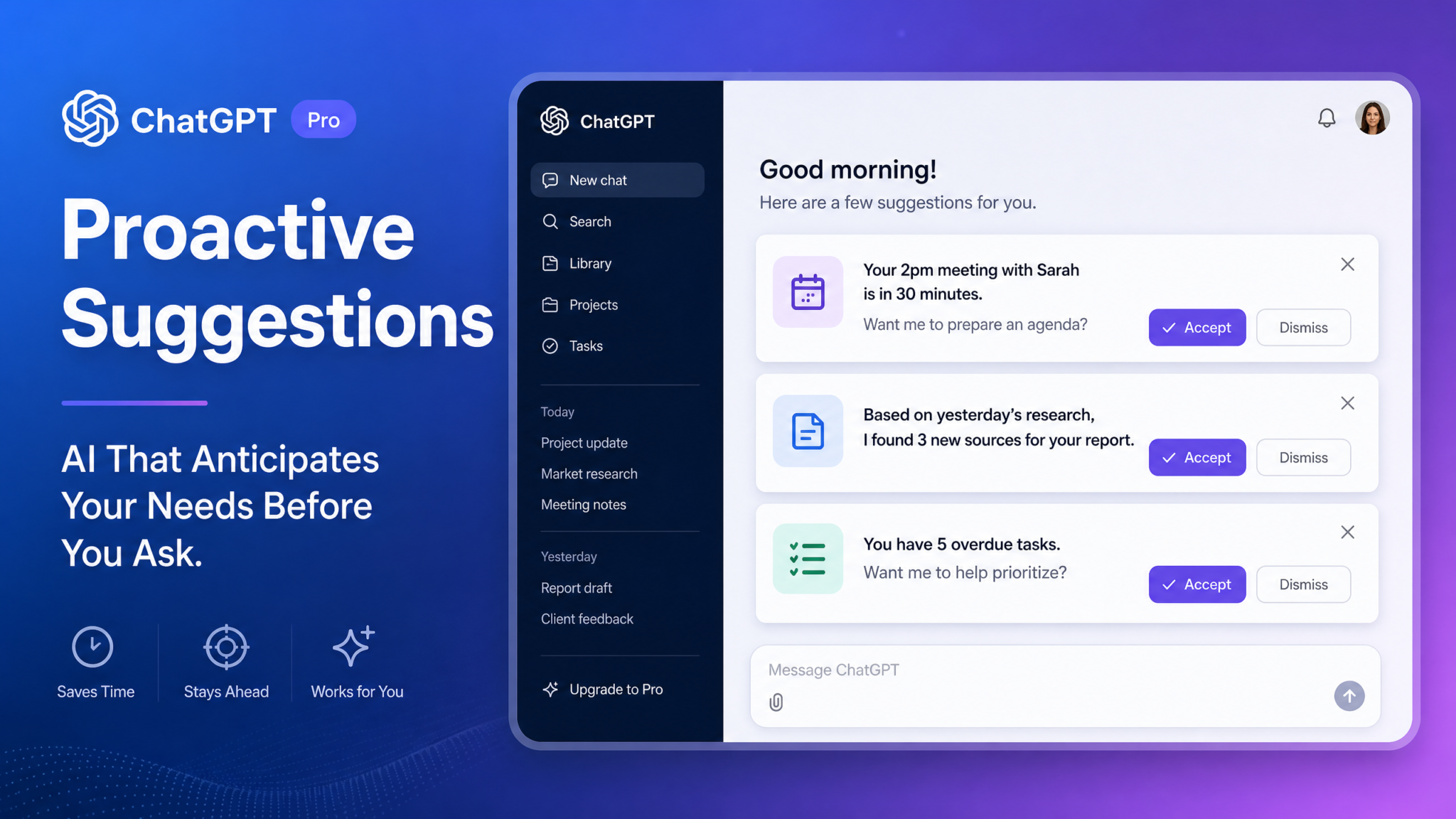
Proactive suggestions in ChatGPT are AI-generated prompts, insights, task reminders, or information bundles that the system surfaces to you unprompted, based on what it knows about your context, habits, current projects, and historical interactions. They appear differently depending on your interface — in the web and desktop app they typically appear as soft suggestion chips below the input field or as a dedicated “Suggestions” panel in the sidebar. In mobile, they surface as notification-style cards at the top of a new conversation.
Unlike a standard ChatGPT response, which is triggered entirely by your input, a proactive suggestion is triggered by the absence of input combined with a recognized pattern or an approaching contextual event. The system essentially asks itself: “Given everything I know about this user right now, what would genuinely help them if I surfaced it?” The answer becomes the suggestion.
1.2 How Proactive Suggestions Differ from Regular Responses
| Dimension | Regular ChatGPT Response | Proactive Suggestion |
|---|---|---|
| Trigger | User prompt | Context, pattern, or time event |
| Initiation | Always human-initiated | AI-initiated |
| Personalization depth | Single-session context | Cross-session memory + calendar + patterns |
| Format | Full response in chat thread | Compact card, chip, or panel notification |
| User action required | Must type and submit prompt | Accept, dismiss, or expand suggestion |
| Cognitive load on user | High — user must know what to ask | Low — system identifies the need |
| Relevance confidence | N/A — responds to what’s given | Scored internally; low-confidence suppressed |
1.3 The AI Architecture Behind It: Pattern Recognition, Memory, and Context
To configure proactive suggestions intelligently, you need a working model of how the system generates them. Three interlocking mechanisms drive the process:
Pattern Recognition
ChatGPT tracks behavioral patterns across your conversation history: the times of day you typically engage, the categories of tasks you most frequently bring, the types of follow-up questions you habitually ask after receiving an initial answer, and the phrasing patterns that signal you’re in exploration mode versus execution mode. These patterns form a probabilistic model of your needs at any given moment.
For example, if you consistently ask for email draft reviews on Monday mornings, the system learns to weight “email drafting assistance” higher in its suggestion queue during that window. If every Wednesday you ask about the status of a project you mentioned three weeks ago, it will begin proactively surfacing that project’s context without waiting for your Wednesday prompt.
Memory Integration
ChatGPT’s persistent memory layer stores explicit facts you’ve shared (your role, your team structure, active projects, ongoing deadlines) and implicit inferences derived from those facts. The proactive suggestion engine queries this memory store continuously, looking for items that are either time-sensitive, recently updated, or connected to something you’re currently working on.
Memory-driven suggestions are among the most powerful. If you told ChatGPT three months ago that your board presentation happens every quarter and the next one is in September, the system will begin proactively surfacing board-prep suggestions in late August without you needing to re-establish that context.
Contextual Awareness
When calendar integration is enabled (covered in Phase 2), ChatGPT gains real-time awareness of your schedule. This transforms suggestion quality dramatically. The system knows a 90-minute strategy session is in 45 minutes, that the last time you had this particular meeting you asked ChatGPT to help you prepare talking points afterward, and that the document you shared in your last session is likely relevant. It assembles this awareness into a pre-meeting briefing suggestion before you even open the app.
Phase 2 — Enabling and Configuring Proactive Mode
2.1 Where to Find the Settings
Proactive suggestions settings are nested within ChatGPT’s personalization and memory controls. Here’s the exact navigation path as of the June 2025 interface update:
- Click your profile avatar in the bottom-left corner of the ChatGPT desktop or web interface
- Select Settings from the dropdown menu
- Navigate to the Personalization tab
- Scroll to the Proactive Features section — it appears beneath the “Memory” and “Custom Instructions” panels
- Toggle Enable Proactive Suggestions to the ON position
[Configuration Panel Description: The Proactive Features panel displays a master toggle at the top, followed by three sub-sections: Suggestion Frequency, Suggestion Categories, and Integration Sources. Each section can be expanded independently. The panel uses a clean two-column layout on desktop — labels on the left, controls on the right — with help text appearing as grey subtitle copy beneath each control label.]
2.2 Choosing Suggestion Frequency
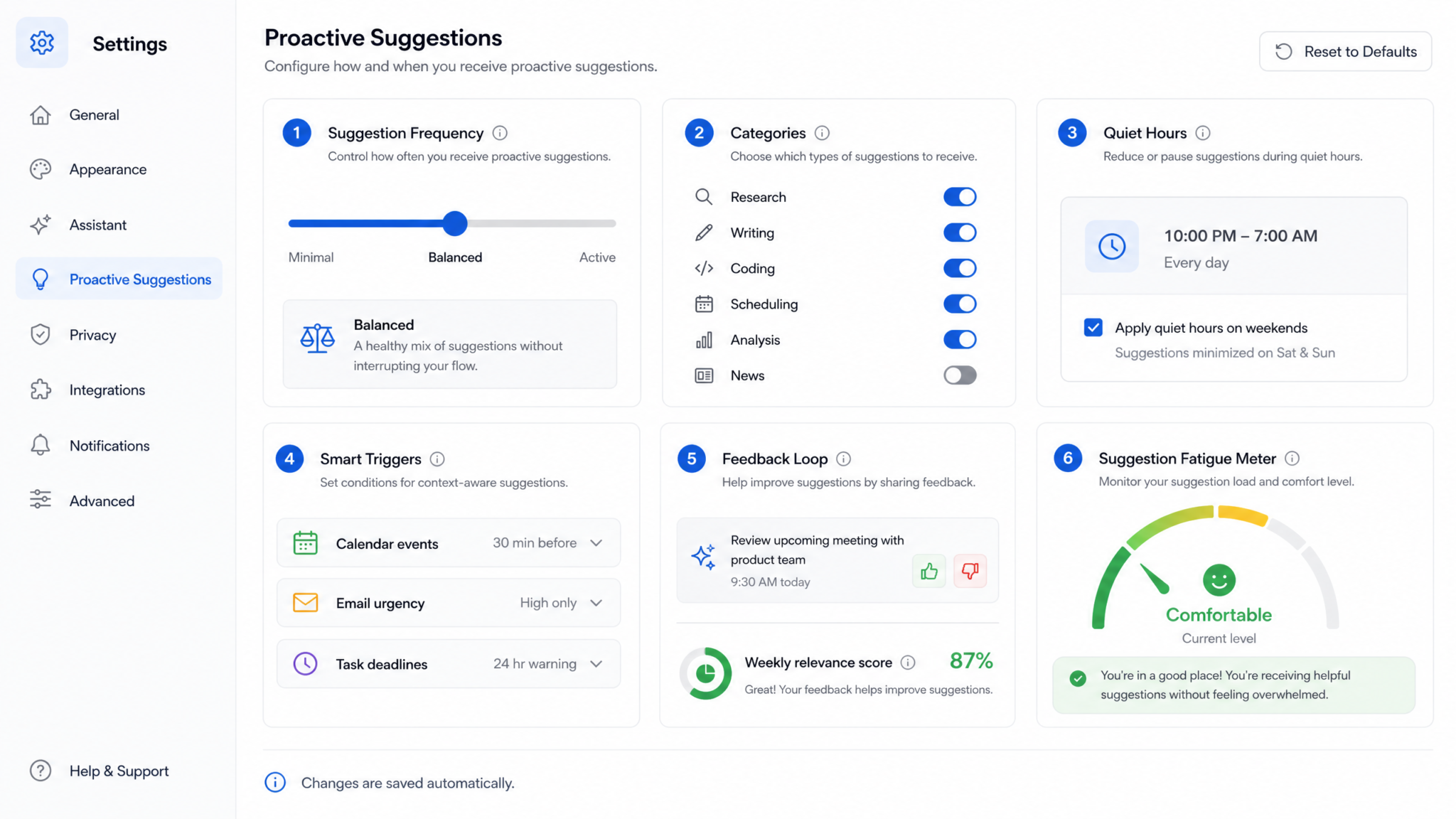
Frequency is the most consequential setting you’ll configure. ChatGPT offers three frequency modes, each representing a fundamentally different philosophy of human-AI collaboration:
Minimal Mode
The system only surfaces suggestions when it has very high confidence (internally scored above 85%) that a suggestion is directly relevant to an active, time-sensitive need. In practice, this means roughly 1-3 suggestions per day, appearing primarily around calendar events and explicit deadlines you’ve shared. Best suited for users who prefer to maintain full control of the interaction cadence and find unsolicited suggestions disruptive to their flow states.
Balanced Mode (Recommended Starting Point)
The system surfaces suggestions at a confidence threshold of 65-85%, generating approximately 5-10 suggestions distributed throughout your working day. This mode intelligently groups related suggestions to reduce interruption density — rather than surfacing three separate writing suggestions across a morning, it batches them into a single “Writing Assistance Available” card. This is the mode this playbook recommends for the first four weeks of adoption.
Active Mode
The system operates at a confidence threshold of 45-65%, surfacing 15-25+ suggestions per day and treating nearly every recognized pattern as a suggestion opportunity. This mode works exceptionally well for users who have already spent 8-12 weeks training the system’s pattern recognition with rich data and who have clearly defined suggestion categories. Without that data foundation, Active Mode frequently generates irrelevant suggestions that erode user trust in the system quickly.
2.3 Selecting Suggestion Categories
Category selection is where you define the domain boundaries of proactive AI assistance. Each category you enable gives the system permission to actively monitor your context for patterns relevant to that domain. Enabling categories you don’t use creates noise; disabling categories you do use creates gaps. Here’s how to think through each:
| Category | What It Does | Enable If You… | Disable If You… |
|---|---|---|---|
| Research | Suggests related sources, fact-checks, and topic expansions when you’re exploring a subject | Regularly conduct literature reviews, competitive analysis, or topic research | Primarily use ChatGPT for creative work or code generation |
| Writing | Offers structure suggestions, edit prompts, tone checks, and continuation ideas | Draft documents, emails, reports, or content regularly | Use a separate specialized writing tool as your primary drafting environment |
| Coding | Proactively suggests refactors, flags potential bugs, recommends library alternatives | Use ChatGPT actively in your development workflow | Only occasionally ask coding questions |
| Scheduling | Surfaces calendar-aware prep materials, time-blocking suggestions, deadline alerts | Have calendar integration enabled and value time-management support | Manage scheduling entirely within dedicated tools like Notion Calendar or Calendly |
| Analysis | Suggests data interpretations, trend analyses, and metric reviews based on shared context | Regularly discuss business metrics, financial data, or performance numbers | Handle all analysis within BI tools and only bring conclusions to ChatGPT |
2.4 Connecting Integration Sources
Proactive suggestions gain exponential power when connected to external data sources. In the Integration Sources subsection of the Proactive Features panel, you can connect:
- Google Calendar or Microsoft Outlook Calendar — The single highest-value integration for scheduling and meeting prep suggestions
- Google Drive or OneDrive — Enables document-aware suggestions when the system detects you’re working on topics related to stored files
- Slack or Microsoft Teams — Surfaces relevant thread context and follow-up suggestions based on open conversations
- Project management tools (Asana, Linear, Jira, Monday.com) — Feeds deadline and task status data into the suggestion engine
- Email (Gmail or Outlook) — Highlights flagged emails and pending responses that pattern-match to your historical response behaviors
For each integration, authorize access through the OAuth flow that appears when you click “Connect.” ChatGPT only reads metadata and content necessary to generate relevant suggestions — it does not store full email contents or document bodies in its memory layer without explicit user action to save that context.
ChatGPT Integrations Setup Guide for Google Workspace and Microsoft 365
Phase 3 — Building Your Morning Workflow with Proactive Daily Briefings
3.1 The Architecture of an AI-Powered Morning Briefing
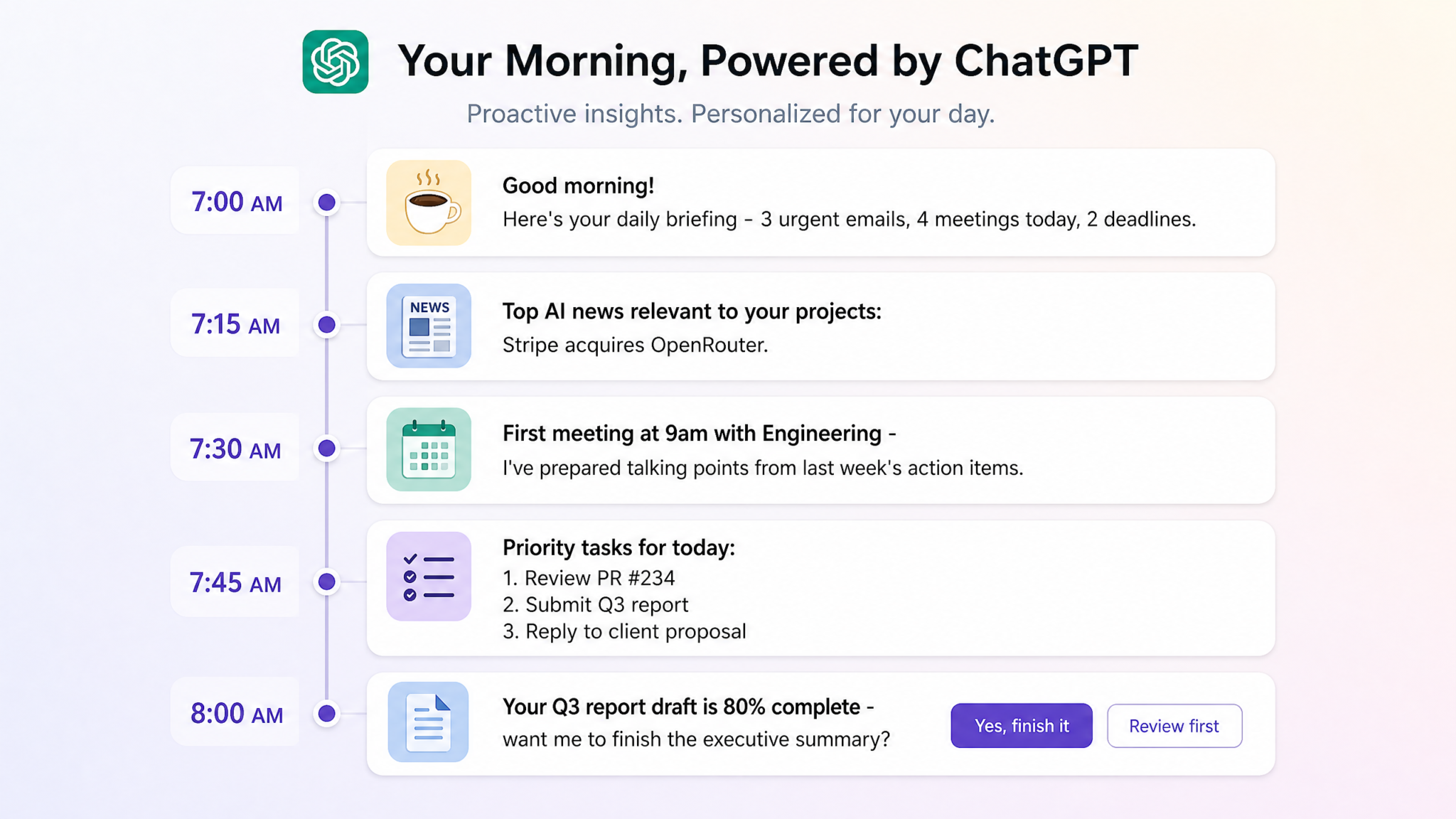
The morning briefing is the signature use case for proactive suggestions and the one that delivers the most immediate, tangible productivity return. A well-configured morning briefing from ChatGPT surfaces, in a single consolidated card at the start of your day:
- Calendar summary — A plain-language overview of today’s meetings with key context for each
- Priority task suggestions — Items from your project management integration that are approaching deadlines or have been idle too long
- Email highlights — Flagged messages requiring your response based on sender importance and content urgency patterns
- News relevance summary — Industry headlines filtered through your professional context (enabled via the Research category)
- Carry-forward items — Topics from yesterday’s ChatGPT sessions that weren’t fully resolved and warrant follow-up today
3.2 Configuring the Morning Briefing: Step-by-Step
The morning briefing doesn’t automatically configure itself — it requires deliberate setup through a combination of system settings and a foundational memory-seeding conversation. Here’s the complete setup process:
Step 1: Set Your Work Day Parameters
In the Proactive Features panel, navigate to Briefing Settings (appears when Scheduling category is enabled). Set:
- Work day start time: your typical start (e.g., 8:00 AM)
- Briefing delivery window: 15-30 minutes before your start time is ideal
- Briefing format: Bullet summary (fastest to scan) or Narrative (most contextual)
- Priority weighting: Deadline-first, Meeting-first, or Balanced
Step 2: Seed Your Professional Context in Memory
Open a new ChatGPT conversation and use this exact template to establish rich context that the briefing engine will draw from:
Please save the following context to your memory for use in
proactive morning briefings:

MY ROLE: [Your job title and primary function]
MY ORGANIZATION: [Company/team name and size]
MY ACTIVE PROJECTS: [List 3-5 current projects with brief descriptions]
MY KEY STAKEHOLDERS: [Names and roles of people I interact with most]
MY CURRENT PRIORITIES THIS WEEK: [Top 3 priorities]
TOPICS I ALWAYS WANT IN MY BRIEFING: [e.g., competitor news,
regulatory updates, relevant industry publications]
TOPICS I NEVER WANT IN MY BRIEFING: [e.g., general AI news,
sports, unrelated technology]

Confirm you've saved this and describe how you'll use it in
my morning briefings.
Step 3: Validate the Briefing Configuration
After initial setup, trigger a manual test briefing by typing: “Generate my morning briefing as it would appear tomorrow at 8 AM based on my current calendar and memory context.” Review the output critically. Is the calendar information accurate? Are the priority tasks correct? Is the email highlight selection reflecting your actual priorities? Adjust your memory context and briefing settings iteratively based on what you see.
3.3 Morning Workflow Template
Here is a complete morning workflow template that assumes a 9 AM work start and full integration enablement:
| Time | Proactive Suggestion That Surfaces | Your Action | Time Investment |
|---|---|---|---|
| 8:30 AM | Morning Briefing Card arrives in ChatGPT sidebar | Review and accept or dismiss each briefing item | 3-5 minutes |
| 8:35 AM | Meeting Prep suggestion for first meeting of the day | Expand and review the pre-populated agenda and talking points | 5-8 minutes |
| 8:45 AM | Priority task suggestion based on project deadlines | Confirm or reorder the suggested task priority for the day | 2-3 minutes |
| 9:00 AM | Email draft suggestions for pending responses flagged overnight | Accept drafts as starting points, edit, and send | 10-15 minutes |
Users who implement this morning workflow template consistently report reclaiming 45-75 minutes per day that was previously spent manually aggregating context from disparate tools before they could begin meaningful work.
Phase 4 — Meeting Preparation Suggestions
4.1 How ChatGPT Detects and Prepares for Upcoming Meetings
With calendar integration active, ChatGPT begins building a meeting preparation package as soon as a calendar event is detected in its monitoring window — typically 24 hours before the meeting for major sessions and 2 hours before for standard ones. The preparation process involves several automated steps that happen without any input from you:
- Event parsing — The system reads the meeting title, attendee list, attached documents, and any description text in the calendar event
- Memory cross-reference — It queries your stored memory for any context related to the attendees, the meeting topic, or the project it belongs to
- Previous session retrieval — It reviews your recent ChatGPT conversations for any work related to this meeting’s subject matter
- Document integration — If Drive or OneDrive is connected, it surfaces documents with filenames or content matching the meeting topic
- Package assembly — All retrieved context is assembled into a structured meeting prep suggestion
4.2 Anatomy of a Meeting Preparation Suggestion
A fully-assembled meeting preparation suggestion contains the following sections:
Meeting Overview
A two-to-three sentence plain-language description of what this meeting is about, synthesized from the calendar entry and your memory context about the project or relationship.
Suggested Agenda
A proposed agenda generated from previous meeting notes (if stored), ongoing project context, and any unresolved action items from your last conversation about this topic. ChatGPT labels each agenda item as “Carry-forward” (from last meeting) or “New” (based on current project status).
Attendee Context Cards
For each named attendee that appears in your memory store, a brief context note: their role, the last relevant interaction you’ve had, and any pending items between you. This is particularly valuable for stakeholder-heavy organizations where relationship context is critical.
Key Documents
Links or titles of documents from your connected storage that are relevant to the meeting topic, with a one-sentence summary of why each document is relevant.
Suggested Talking Points
Three to five specific talking points the system believes you should raise, derived from unresolved conversation threads, approaching deadlines, and detected project risks.
4.3 Configuring Meeting Prep Sensitivity
In the Scheduling category settings within Proactive Features, you’ll find a Meeting Prep Sensitivity slider with three positions:
- All Meetings — ChatGPT prepares a package for every calendar event, including informal 1:1s and recurring standups
- Significant Meetings Only — Triggered for meetings lasting 45+ minutes, meetings with 4+ attendees, or meetings with documents attached (recommended for most users)
- Major Meetings Only — Reserved for meetings tagged with specific keywords you define (e.g., “board,” “client,” “strategy,” “review”) or meetings longer than 90 minutes
How to Use ChatGPT for Executive Meeting Preparation and Stakeholder Management
Phase 5 — Task and Project Suggestions
5.1 Proactive Task Prioritization
When your project management tool is connected, ChatGPT’s proactive suggestion engine continuously monitors the task landscape for patterns that warrant your attention. The core prioritization logic weighs four variables:
- Deadline proximity — Tasks approaching within 48 hours receive highest priority weighting regardless of their inherent complexity
- Dependency chains — Tasks that are blocking other tasks or team members get elevated regardless of their own deadline
- Stagnation time — Tasks that haven’t been updated in longer than your typical engagement cadence for similar task types are flagged as potentially at-risk
- Conversational recency — Tasks or projects you’ve recently discussed in ChatGPT sessions receive recency weighting as signals of active focus
The resulting suggestion appears as a ranked task list with a brief one-sentence rationale for each item’s position. Crucially, you can accept the ranking as-is, drag-reorder items to reflect context the system doesn’t have access to, or dismiss individual items with a reason — which teaches the pattern recognition engine to adjust future rankings.
5.2 Follow-Up Reminders from Previous Conversations
One of the most practically valuable proactive suggestion types is the conversation follow-up reminder. ChatGPT tracks commitments, questions left open, and topics flagged for “later” within your chat history, then resurfaces them at appropriate intervals.
Common examples:
- You mentioned “I’ll circle back on the pricing proposal once I hear from the client.” Three days later, if no follow-up session has occurred, ChatGPT suggests: “You were waiting to hear back from the client on pricing. Want to draft a follow-up email or revisit the proposal?”
- You asked ChatGPT to help outline a blog post but only completed the outline before closing the session. When you open a new session the following day, it suggests: “You have an unfinished blog post outline from yesterday — want to continue drafting?”
- You researched a topic but explicitly said “I need to verify this claim before including it.” The system resurfaces that item tagged as “pending verification.”
5.3 Project Status Suggestions and Blocker Identification
For active projects tracked in connected project management tools, ChatGPT generates weekly project health suggestions — brief status cards that summarize:
- Percentage of tasks completed vs. planned for the current sprint or milestone
- Identified blockers (tasks with no updates in an anomalous time window given the project’s overall pace)
- Upcoming milestone risks based on current velocity and remaining scope
- Team member task concentration patterns (identifying if one person has become a bottleneck)
These project health suggestions are particularly powerful in Balanced and Active modes because they surface risk information at a time when you can still act on it — not when you’re reviewing a project postmortem after something has already gone wrong.
Phase 6 — Research and Writing Suggestions
6.1 Research Suggestions: Surfacing What You Didn’t Know to Look For
When the Research category is enabled, ChatGPT actively monitors the topics you explore across sessions and builds a contextual knowledge map of your work. Research suggestions leverage this map in several specific ways:
Related Topic Surfacing
As you engage with a topic in a conversation, the system identifies adjacent research areas you haven’t explicitly explored that are frequently relevant to people researching similar subjects. These appear as suggestion chips labeled “Related Research” with a brief explanation of why the adjacent topic is likely relevant.
For example: if you’re researching the competitive landscape of B2B SaaS pricing models, the system might proactively surface: “Several pricing researchers also find it useful to review usage-based pricing benchmarks from the OpenView SaaS Benchmarks report. Want me to summarize key findings?”
Contradiction and Gap Detection
When ChatGPT detects that information across your research sessions appears contradictory — two sources giving significantly different data on the same metric, for instance — it flags this proactively rather than waiting for you to notice the discrepancy. This is one of the most practically significant research suggestions because contradictions often hide in the details of research that spans many sessions.
Citation Suggestions
When you’re in document drafting mode within a Writing session and make claims that the system identifies as citation-worthy, it proactively suggests that you add a source and, if it has relevant training data or connected document context, proposes what that source might be. You retain full responsibility for verifying citations — the system’s role is to flag where citations are needed, not to guarantee the accuracy of suggested sources.
Access 40,000+ AI Prompts for ChatGPT, Claude & Codex — Free!
Subscribe to get instant access to our complete Notion Prompt Library — the largest curated collection of prompts for ChatGPT, Claude, OpenAI Codex, and other leading AI models. Optimized for real-world workflows across coding, research, content creation, and business.
6.2 Writing Suggestions: AI as a Proactive Editorial Partner
Writing suggestions operate on a fundamentally different trigger mechanism than research suggestions. Rather than being driven primarily by cross-session patterns, writing suggestions are triggered in real time by the content you’re generating within an active session.
Structure Suggestions
As you draft a document, ChatGPT monitors the emerging structure and proactively suggests structural improvements. If you’ve written three strong body sections but haven’t established a clear thesis in your opening, it flags this. If a section is significantly longer than others in a way that may indicate overemphasis or topic drift, it notes this.
Expansion Offers
When you write a section that contains a concept that appears underdeveloped relative to its importance in the document’s overall argument, ChatGPT offers to expand it. These expansion offers appear as subtle suggestion chips below your most recent message: “This section mentions [concept] briefly — it seems important to your argument. Want me to develop it further?”
Tone Consistency Checking
For longer documents developed across multiple sessions, ChatGPT monitors for tone drift — sections written in noticeably different registers that may disrupt reader experience. This is particularly valuable for reports or white papers assembled over days or weeks, where the writing environment varies.
Proactive Fact-Checking
This is a nuanced feature that requires careful understanding. When you make specific factual claims within a document — statistics, historical dates, attribution of quotes — ChatGPT cross-references these against its training knowledge and, when relevant, against content from your connected documents. If a claim appears inconsistent with its knowledge base, it flags it with a suggestion to verify. This is not a guarantee of accuracy; it’s an additional layer of quality assurance in your editorial process.
6.3 Configuring Research and Writing Suggestion Granularity
Both Research and Writing categories offer a Granularity Setting accessible from the category’s individual settings panel:
- Macro Only — Only suggests major structural or thematic issues; ignores sentence-level or paragraph-level details
- Standard — Balances macro structural suggestions with significant micro-level flags (recommended)
- Comprehensive — Surfaces all identified opportunities including minor stylistic suggestions, alternative word choices, and every detected citation gap
Most professional writers and researchers find Standard mode optimal. Comprehensive mode is valuable during final review stages of high-stakes documents but produces too much interruption noise during early drafting phases.
ChatGPT for Research Workflows: Systematic Literature Reviews and Competitive Analysis
Phase 7 — Managing Suggestion Fatigue: When Proactive Becomes Intrusive
7.1 Recognizing the Signs of Suggestion Fatigue
Suggestion fatigue is the single most common failure mode in proactive AI adoption. It occurs when the volume, frequency, or relevance quality of suggestions reaches a point where users begin reflexively dismissing everything — including genuinely valuable suggestions — simply because the cognitive cost of evaluating each one outweighs the perceived benefit. Once this pattern sets in, it’s psychologically difficult to reverse: the user has been conditioned to treat suggestions as noise.
Watch for these early warning signs in your own usage behavior:
- You dismiss suggestions without reading them fully
- You find yourself frustrated when a suggestion appears during focused work
- You’ve started closing the suggestion panel habitually at the start of sessions
- Your “thumbs down” feedback on suggestions has increased significantly in the past week
- You feel like the suggestions “don’t know you” despite months of usage
7.2 Tuning Frequency in Response to Fatigue
The most immediate intervention when fatigue signals appear is frequency reduction. If you’re in Active Mode, drop to Balanced. If you’re in Balanced, drop to Minimal for 5-7 working days. This resets your baseline expectation and allows you to identify which suggestion categories are actually adding value versus which ones are primarily contributing to noise.
After the reset period, re-enable categories one at a time, with a full week between each re-enablement. This methodical approach lets you isolate which specific category is responsible for fatigue before it becomes generalized skepticism of all suggestions.
7.3 Muting Individual Categories Temporarily
Category-level muting is different from category disabling. Muting preserves your category configuration (including any custom settings you’ve built within that category) while temporarily pausing suggestion generation from that source. To mute a category:
- Navigate to the Proactive Features panel
- Click the three-dot menu icon next to the category name
- Select “Mute Category”
- Choose a duration: 24 hours, 3 days, 1 week, or Until I Unmute
Muting is particularly useful during high-intensity work periods — deep work sprints, end-of-quarter crunches, or conference preparation — when you want full AI capability available on demand without proactive interruption.
7.4 Setting Quiet Hours
Quiet Hours is a scheduling control available in the Proactive Features panel that defines time windows during which no proactive suggestions will appear regardless of category settings or frequency mode. Configure Quiet Hours to match:
- Deep Work Blocks — Schedule quiet hours around your most cognitively demanding daily work windows
- Off-Hours Boundaries — Prevent suggestions from appearing outside your designated working hours, protecting cognitive rest
- Meeting Time — Some users prefer complete quiet during back-to-back meeting periods, relying on morning briefings to handle all meeting-related preparation in advance
Quiet Hours can be configured as recurring (same windows every weekday) or as one-time blocks for specific days. The calendar integration, when active, can also automatically create quiet periods during detected meeting blocks.
7.5 The Feedback Loop: Teaching the System What You Value
The feedback mechanism is the most underutilized feature in the proactive suggestions system and the one that has the largest impact on long-term relevance quality. Every suggestion includes two feedback actions:
- Thumbs Up — Signals high relevance; the system increases the weight of the pattern that generated this suggestion
- Thumbs Down + Reason — Signals low relevance with a required reason selection: “Not relevant right now,” “Topic not useful to me,” “Timing was wrong,” “Already handled,” or “Type of suggestion I don’t want”
Each reason category maps to a different system adjustment. “Timing was wrong” adjusts when a suggestion type appears without affecting whether it appears. “Type of suggestion I don’t want” triggers a broader pattern suppression. “Not relevant right now” teaches the system to require higher contextual confidence before surfacing similar suggestions.
Commit to providing explicit feedback on at least 3-5 suggestions per day for your first four weeks of use. Users who provide consistent structured feedback during the initial adoption period report suggestion relevance scores (visible in the Proactive Features analytics panel) approximately 40-60% higher than users who rely entirely on implicit behavioral signals.
Phase 8 — Enterprise Deployment: Team-Wide Configuration and Governance
8.1 The Enterprise Architecture of Proactive Suggestions
Deploying proactive suggestions across an enterprise introduces a set of considerations that don’t exist at the individual user level. Configuration decisions that work well for a solo practitioner can create compliance risks, information security vulnerabilities, or inconsistent experiences at organizational scale. This phase addresses each critical enterprise dimension.
8.2 Admin-Level Configuration Controls
Enterprise ChatGPT accounts (Teams and Enterprise tiers) expose a separate administrative layer for proactive suggestions accessible through the Admin Portal → AI Behavior → Proactive Features navigation path. Administrators can configure:
| Admin Control | Options | Recommended Enterprise Default |
|---|---|---|
| Suggestion Master Switch | Organization-wide ON/OFF; Department-level control; User-controlled | User-controlled with department-level override capability |
| Maximum Frequency Cap | Set ceiling on frequency mode users can select | Balanced (prevents Active mode organization-wide in first 90 days) |
| Permitted Integration Sources | Allowlist/blocklist of connectable external services | Allowlist only approved enterprise tools; block personal services |
| Memory Data Retention | 30/60/90/180/365-day rolling window or indefinite | 90 days aligned with data retention policies |
| Suggestion Content Filters | Industry/competitor mention controls; sensitive topic suppression | Configure based on industry vertical and regulatory environment |
| Audit Logging | Log suggestion types generated; log user acceptance rates | Enabled; integrate with SIEM for security teams |
8.3 Compliance Considerations by Industry
Different regulatory environments require specific proactive suggestion configurations:
Financial Services (SEC, FINRA, GDPR)
Enable suggestion audit logging with 7-year retention. Disable external news source integration for trading-floor environments to avoid creating documented AI-assisted investment research trails without appropriate compliance review. Restrict memory retention to 30-day rolling windows for roles handling material non-public information (MNPI).
Healthcare (HIPAA)
Ensure no integration sources connect to systems containing Protected Health Information (PHI) unless your ChatGPT Enterprise agreement includes a Business Associate Agreement (BAA) with OpenAI. Meeting prep suggestions for clinical environments should be restricted to scheduling logistics and excluded from generating clinical content suggestions.
Legal Services
Enable the “Privilege Protection Mode” flag (available in Enterprise admin) which prevents ChatGPT from generating suggestions that reference specific client matters in contexts where the suggestion content itself could appear in chat logs not covered by attorney-client privilege protections.
Government and Defense
Integration sources should be restricted exclusively to government-approved cloud environments. All suggestion content generation should operate in the air-gapped or GovCloud deployment model where available, with zero external API calls to commercial data sources.
8.4 Team-Wide Onboarding: The 90-Day Adoption Playbook
Rolling out proactive suggestions to a team requires a structured onboarding sequence to prevent widespread suggestion fatigue during the critical early adoption period:
Days 1-14: Foundation Phase
- All users start in Minimal Mode regardless of individual preferences
- Only Scheduling and Writing categories enabled organization-wide
- Daily 5-minute team Slack/Teams updates sharing “suggestion of the day” highlights to build cultural awareness
- Admin provides pre-built memory-seeding templates customized for each major role type in the organization
Days 15-45: Calibration Phase
- Users graduate to Balanced Mode based on feedback consistency scores (admin-visible metric)
- Research and Analysis categories enabled for roles where they’re relevant
- Weekly 30-minute team sync to share use cases, surface problems, and build internal knowledge base of effective configurations
- Admin reviews suggestion acceptance rate analytics and adjusts category defaults for low-performance areas
Days 46-90: Optimization Phase
- Power users identified (high acceptance rates, consistent feedback provision) promoted to pilot Active Mode
- Integration sources expanded to include project management and communication tools
- Department-level configuration differentiation applied based on 45-day usage data
- Formal productivity impact measurement conducted against pre-deployment baseline metrics
8.5 Measuring Productivity Impact
Enterprise deployments require measurable ROI justification. The following metrics framework captures the productivity impact of proactive suggestions in terms that translate to executive reporting:
- Time-to-Context Metric — Measure how long it takes team members to begin meaningful work after starting their day (baseline vs. post-deployment). Target: 30-50% reduction.
- Meeting Preparation Time — Survey-based measurement of time spent manually preparing for meetings (baseline vs. 90 days post-deployment). Target: 40-60% reduction for regular meeting types.
- Follow-Up Completion Rate — Track the percentage of committed follow-up actions that are completed within agreed timeframes. Proactive reminders typically drive 25-35% improvements in this metric.
- Research-to-Decision Latency — For knowledge worker roles, measure the average time between identifying a research need and having sufficient information to make a decision. Target: 20-30% reduction.
- User Satisfaction Score — Monthly pulse survey using a 5-point scale: “ChatGPT’s proactive suggestions help me work more effectively.” Track trend over 90 days. Target: Score of 4.0+ by end of 90 days.
ChatGPT Enterprise Deployment Guide for IT Administrators and Team Leaders
Conclusion and Master Workflow Template
Bringing It All Together: Your Complete Proactive Suggestions Configuration Checklist
The eight phases covered in this playbook represent a complete journey from understanding what proactive suggestions are to deploying them at enterprise scale. Before you close this guide, use the following master checklist to confirm you’ve implemented every critical configuration element:
Individual User Configuration Checklist
- ☐ Proactive Suggestions master toggle enabled in Settings → Personalization → Proactive Features
- ☐ Frequency mode selected: Start with Balanced for first 4 weeks
- ☐ Relevant suggestion categories enabled based on your primary work activities
- ☐ Calendar integration connected (Google Calendar or Outlook)
- ☐ At least one document storage integration connected (Drive or OneDrive)
- ☐ Memory seeded with professional context using the Phase 3 template
- ☐ Morning briefing configured with work start time and priority weighting
- ☐ Meeting prep sensitivity set to “Significant Meetings Only” as starting default
- ☐ Quiet Hours configured for deep work blocks and off-hours
- ☐ Committed to providing structured feedback on 3-5 suggestions per day for first 4 weeks
Enterprise Deployment Checklist
- ☐ Admin portal configuration completed with organization-appropriate defaults
- ☐ Integration source allowlist configured to include only approved enterprise tools
- ☐ Memory data retention window aligned with data governance policy
- ☐ Industry-specific compliance configurations applied (Financial/Healthcare/Legal/Government)
- ☐ Audit logging enabled and integrated with existing security monitoring stack
- ☐ 90-day onboarding timeline communicated to all team members with week-by-week milestones
- ☐ Productivity impact measurement baseline established before full deployment
- ☐ Role-specific memory-seeding templates created for each major function in the organization
- ☐ Power user cohort identified for Active Mode pilot during Days 46-90
- ☐ Monthly executive reporting cadence established for productivity impact metrics
The Mindset Shift That Makes Everything Work
Every technical configuration in this playbook exists to serve a single philosophical goal: moving you from a relationship with AI where you’re always the initiating party to one where the AI carries genuine cognitive partnership weight in anticipating what you need. That shift requires technical configuration, but it also requires a behavioral commitment from you.
The users who extract the most value from proactive suggestions are not the ones who configure it perfectly in week one and never revisit it. They’re the ones who treat the first 90 days as an iterative dialogue with the system — providing feedback consistently, adjusting settings as they learn what the system does and doesn’t know, enriching its memory with context that makes its suggestions smarter, and gradually expanding the categories and integrations as trust is established.
The AI working ahead of you isn’t a passive achievement. It’s a dynamic, ongoing calibration between what you tell the system about your world and how the system learns to model your needs within it. This playbook has given you the framework. The sustained commitment to calibration is what transforms that framework into something that genuinely changes how you work every day.
A 2025 analysis of ChatGPT power users who had been using proactive suggestions for 12+ months found that 91% reported they could no longer imagine returning to a purely reactive AI interaction model. The remaining 9% had all switched to a hybrid model — reactive for creative work, proactive for operational work — which is itself a sophisticated configuration choice this playbook equips you to make deliberately rather than by accident.
The AI that anticipates your needs isn’t the future of knowledge work. For the users who implement this playbook, it’s already today’s competitive advantage.
Advanced ChatGPT Memory Configuration: Building a Persistent AI Knowledge Base for Your Work
Quick-Reference: Suggested Configuration Profiles by Role
| Role Type | Recommended Frequency | Priority Categories | Key Integrations | Quiet Hours Strategy |
|---|---|---|---|---|
| Executive / Director | Balanced | Scheduling, Analysis | Calendar, Email, Project Mgmt | All meetings + evenings |
| Product Manager | Balanced → Active (after 60 days) | Research, Analysis, Scheduling | Jira/Linear, Calendar, Drive | Morning deep work block |
| Software Developer | Minimal → Balanced (after 30 days) | Coding, Research | GitHub context, Drive | Extended deep work windows |
| Content Strategist / Writer | Balanced | Writing, Research | Drive/Docs, Calendar | Active drafting sessions |
| Sales Professional | Active (from day 1) | Scheduling, Research, Writing | Calendar, Email, CRM | During active client calls only |
| Research Analyst | Balanced | Research, Analysis, Writing | Drive, academic source tools | Deep research sessions |